
Course with employment: "The profession of a Methodologist from scratch to PRO"
Find out more
Who helped us understand:
An expert in the field of digital tools for education and pedagogical technologies, specializing in hybrid learning. I am a corporate trainer at Center-Game and an expert in the Edutainment Community. My work focuses on introducing innovative teaching methods and using modern technologies to improve the effectiveness of the educational process.
What is SpatialChat
In recent years, as face-to-face communication has become limited, people have begun actively using various platforms for online events. Popular options include video calls in Zoom, Microsoft Teams, and Google Meet, audio chats in Discord, lectures in Clubhouse, and collaboration on interactive whiteboards like Miro and Padlet. Each of these tools has its advantages and is effective in achieving their intended goals. However, according to Anna Babina, no other service can create such a realistic sense of presence as SpatialChat. This tool allows event participants to feel as if they are in the same room, significantly improving interaction and communication.
SpatialChat allows users to create a virtual space in which they can move freely, controlling their avatars. One of the platform's key features is dynamic volume adjustment based on the distance between your avatar and the audio source, whether it's a video or another user's avatar. This feature significantly improves the quality of online interactions and creates a more natural atmosphere for communication. Users can easily find each other, participate in discussions, and share opinions, making SpatialChat the ideal tool for virtual meetings and collaboration.

SpatialChat doesn't require a VR headset: headphones with a microphone and a webcam are sufficient for full-fledged communication with other users. No installation is required—the service is available directly in your browser. Google Chrome or Firefox are recommended, as SpatialChat functions seamlessly in these browsers. For a comfortable experience, you'll need a laptop or desktop computer, as SpatialChat's functionality is significantly limited on smartphones and tablets. You won't be able to watch videos, attach media files, or share your screen on mobile devices. Choosing the right device will ensure the best experience with SpatialChat.
The service offers free use with certain limitations. Your space can accommodate up to three separate areas, called rooms, and a maximum of 50 participants. These conditions are suitable for events with a class or group of students. For those planning larger events, such as corporate events, there is an option to remove the limitations for a fee. Tariff plans start at $49.99 per month.
The developers intend to update the service by the end of the year. They plan to change pricing terms, improve security settings, and introduce new features. We recommend following our updates to stay informed about all changes and take advantage of the service's new features.
What SpatialChat Can Be Used For
SpatialChat can be useful in a variety of learning scenarios for both children and adults. The platform creates a virtual environment where participants can interact with each other in real time. This is especially relevant for educational institutions looking to integrate distance learning into their programs.
Using SpatialChat allows you to organize interactive lessons, group discussions, and workshops, which promotes deeper student engagement. Teachers can easily share materials, conduct presentations, and organize collaborative projects, significantly improving the learning process.
Furthermore, SpatialChat can be useful for professional development courses for adults. The platform allows for a comfortable atmosphere for communication, which is especially important when teaching adults, who may be more critical of traditional teaching methods. Using virtual rooms for discussing topics and sharing experiences between participants makes the learning process more effective and engaging.
Thus, SpatialChat is a valuable tool for implementing educational programs, facilitating effective interaction and learning for both children and adults.
Navigating through the space using an avatar is one of SpatialChat's main features. Use this feature in your classes to effectively convey new information to students. Choose suitable background images for virtual rooms, create a timeline, or plan a route by adding thematic images and videos at key points. This can make your presentation on topics such as the background to the Decembrist uprising or the evolution of simple organisms more engaging and interactive. This approach will capture the attention of your audience and increase their engagement compared to traditional methods such as a static presentation.
SpatialChat offers extensive functionality for creating interactive lessons, allowing you to integrate static images, GIFs, videos, and even browser tabs into the shared space. This makes the platform ideal for organizing educational events and quests. You can use your imagination to implement various scenarios. For example, organize a quest in which each room contains a mini-test or riddle, and the correct answer serves as the password to move on to the next area. This approach not only engages participants but also promotes effective learning.
Customized backgrounds in SpatialChat allow you to create a unique atmosphere for various events. You can transform your virtual room into a parliamentary meeting room, a grocery store, or a hotel lobby. It's the perfect solution for practicing dialogues in foreign languages, holding debates as part of a public speaking training course, mock negotiation rounds for salespeople, or mock court hearings for law students. To use these backgrounds, simply find a suitable image online and upload it as a background. We recommend adding "3D" to your keywords to discover interesting and unique options. Using customized backgrounds not only enriches the participant experience but also makes each session more engaging and productive.
In SpatialChat, users can set a game board as a background, upload images of cards and distribute them to participants, or place them on the virtual game table. The platform offers a variety of mechanics for team games and quizzes, making it ideal for organizing engaging events. Games in which teams discuss their strategies without hearing each other become especially exciting. Being in the same virtual space adds an element of excitement and enhances interaction between participants, making the gameplay even more interesting.
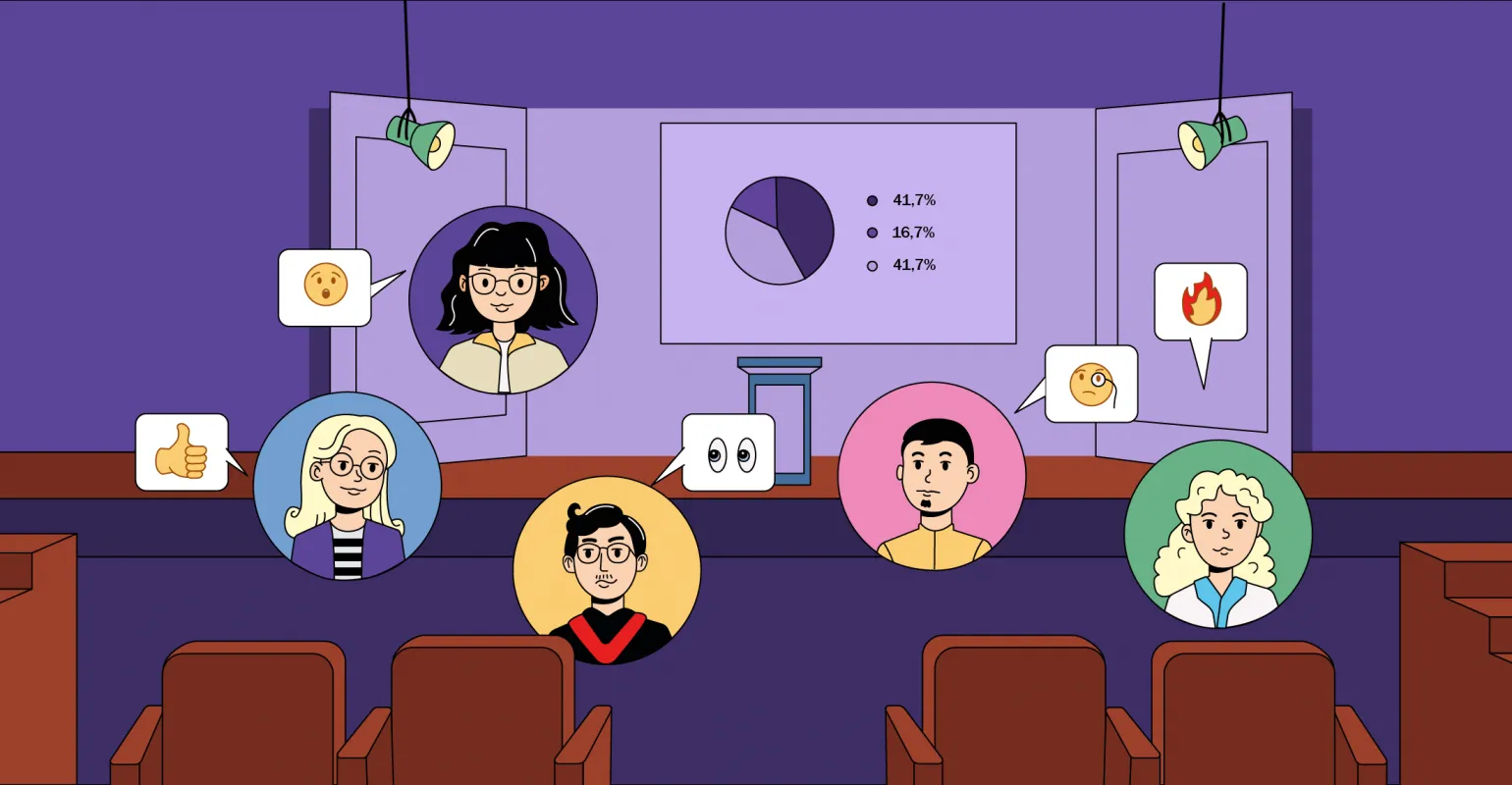
SpatialChat is the ideal platform for delivering online presentations, including talks and presentations. Speakers can easily take to the virtual stage, sharing their screen and displaying a variety of media content. Participants can ask questions, creating an interactive atmosphere and promoting deeper engagement. With its user-friendly interface and functionality, SpatialChat enables high-quality online communication and presentations.
In this scenario, the Broadcast feature is useful, allowing the speaker to be visible on the full screen rather than in a small circle, with their voice audible throughout the space. This is especially important if the goal is to practice a presentation and gestures. The speaker will not hear the participants, but will be able to see their emoji reactions, which is also an excellent tool for practicing public speaking. Using the Broadcast feature promotes more effective interaction with the audience and helps develop public speaking skills.
In the SpatialChat space, posting YouTube links allows participants to watch videos offline, giving everyone the ability to control playback, pause, and rewind independently of other viewers. It is also possible to organize co-watching, creating a "sitting in front of the TV" atmosphere for discussing the content in real time. This is especially useful for group viewing of TED Talks, scientific lectures, educational documentaries, and other materials, which encourages deeper analysis and exchange of ideas.
Given ongoing epidemiological restrictions, it's important to find new formats for interaction. Creating a shared virtual space for each department allows for an information session where first-year students can gain essential information. Afterward, students can be divided into groups and offered separate rooms for a more in-depth introduction to departments and specialties. This approach not only respects safety precautions but also promotes more effective interaction between students and faculty.
Of course, I'm happy to help you with editing the text. Please provide the text you wish to change.
Fontys University of Applied Sciences (Netherlands) has implemented customized backgrounds in SpatialChat to organize online campus tours for first-year and prospective students. The backgrounds feature real university interiors: hallways, a library, classrooms, and a cafeteria. This allows newcomers not only to get to know each other and their faculty but also to get an idea of where they will be studying once COVID-19 restrictions are lifted and in-person classes return. Using such technologies helps create a comfortable and informative atmosphere, making the onboarding process for first-year students smoother and more enjoyable.
SpatialChat is the ideal solution for those tired of traditional video calls. This service makes it easy to communicate with colleagues outside of a work context or organize a virtual tea party with students. Choosing a background that creates a relaxed atmosphere, such as a cozy cafe, helps set the right mood. Adding a music stream from YouTube creates a unique atmosphere. Users can move around the virtual space, chat with different participants, and share photos of their pets. All this makes the interaction feel like a real party, adding an element of fun and informality to online communication.
Getting Started with SpatialChat
It's impossible to cover all the aspects and nuances of using this platform in one article. We'll focus on the key steps and core features so you can understand how to create and configure your first space. If you have any additional questions that weren't covered in this article, we recommend that you contact the support section on the official website or visit the YouTube channel with training videos.
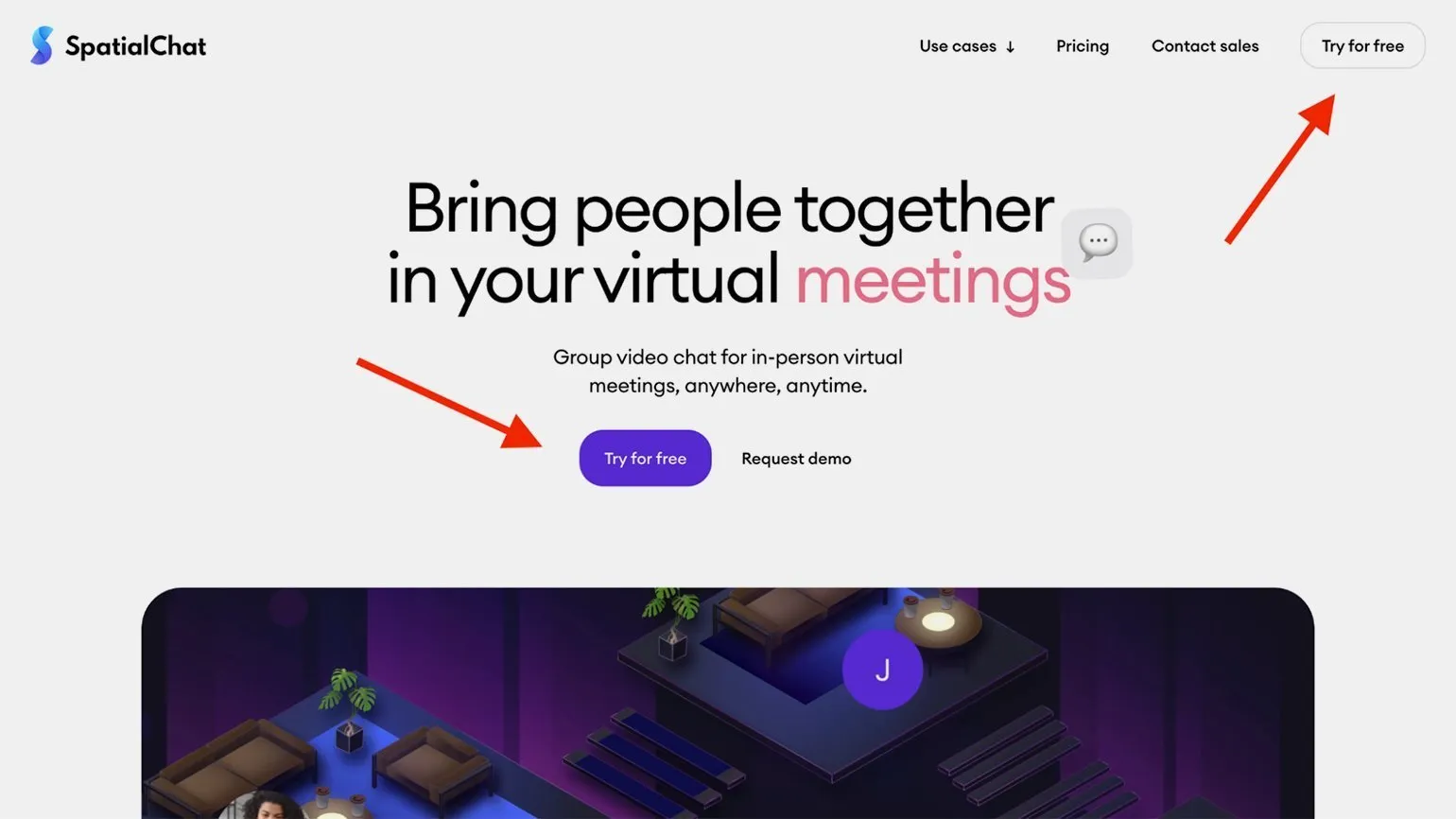
To get started, go to the SpatialChat website and click the "Try for free" button, which is located in the center or upper right corner of the page.
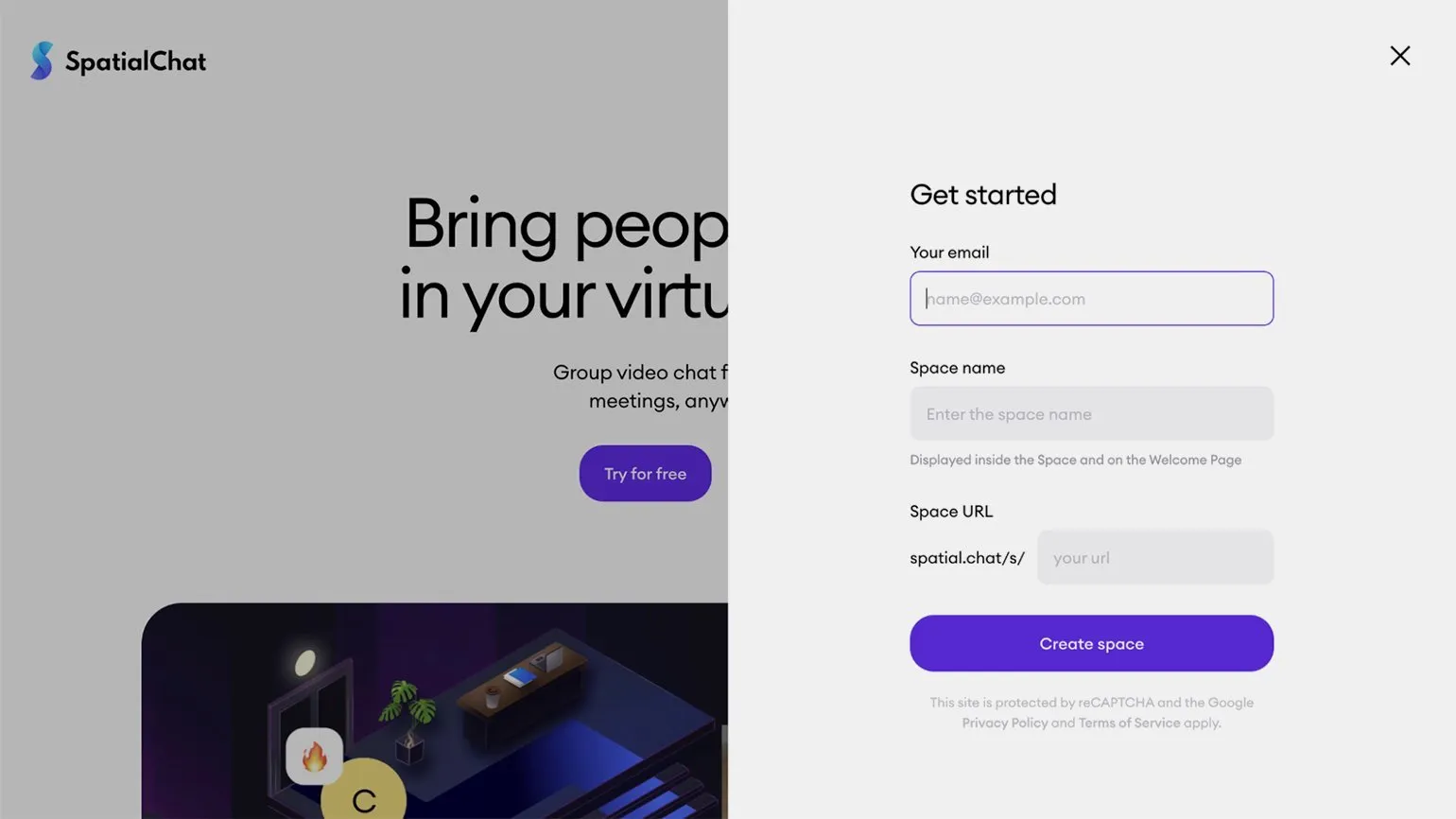
A window will open with three required fields: your current email address, a space name (e.g., "Foreign Literature Quest"), and a unique URL. This URL will allow other members to access your space. It must be at least five characters long, contain Latin letters and hyphens, and begin and end with letters only.
In the future, you will be able to change both the name and URL in your space settings. This will allow you to tailor your content and make it more user-friendly.
An email will be sent to the email address you provided during registration. In this email, you will find a link in the format https://spatial.chat/s/ваше_простатство, as well as a generated password. You will also be provided with an administrator link: https://spatial.chat/s/ваше_простатство?password=12345. Make sure you have checked your email inbox to access your space and use all its features.
Do not share your password or the link containing it with regular users. Administrator rights allow you to choose a pricing plan (if you upgrade to a paid plan), change space settings, manage member access, and determine their actions. To invite users, use the first link, which contains only the URL of your space. This will ensure security and control over access to important information.
Follow the provided link and enter your password. A window will open with a required field for entering your name. You can also upload an avatar by clicking the portrait icon and add information about yourself. All this data will be available for viewing by other participants.
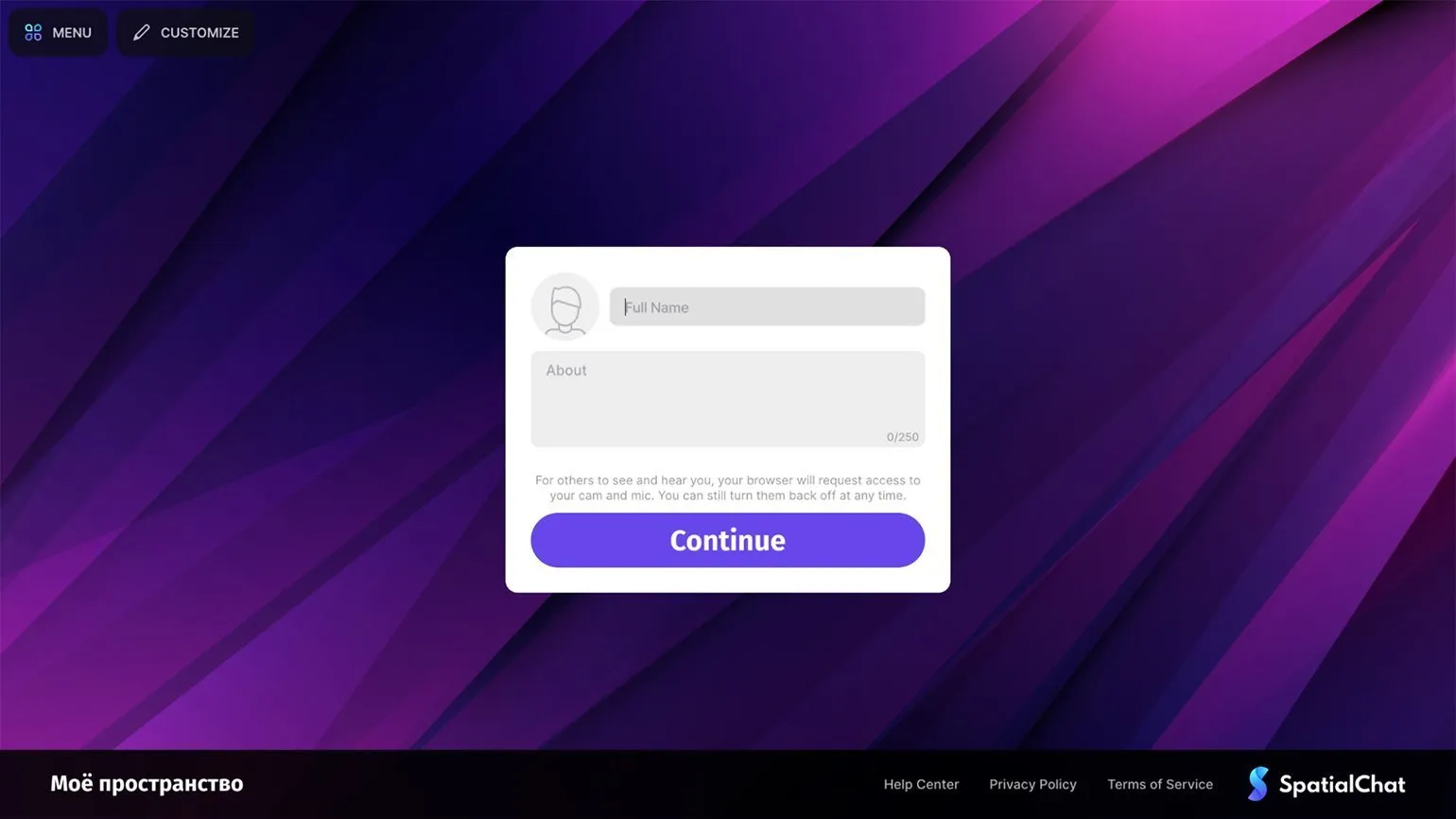
By clicking the button "Continue," you'll be taken to the next screen, where SpatialChat will ask for permission to use your camera and microphone. After that, click the "Join Space" button, and you'll find yourself in the first room. Now you need to prepare the space for other participants.
SpatialChat offers three types of rooms.
- Breakout Room. Despite its laid-back name, this is actually the main workspace. Participants can move around the room, share media and screens, video chat, and chat—unless you've disabled these actions in the settings. This room only accommodates 50 participants—though you can't invite more on the free plan.
- Stage Room. Designed for speaking to large audiences, the room allows up to six people to share content and use the microphone, while other users can only listen to the speakers, send emoji reactions, and chat. Paid plans can accommodate up to three thousand people. Audio Room—the name itself—is self-explanatory. Cameras are disabled, and conversations are limited to 17 participants at a time. Like the Stage Room, it can accommodate up to three thousand people, but this also applies only to paid plans.
We will focus on the Breakout Room, as this is the aspect that interests us most.
By default, our room looks like this:
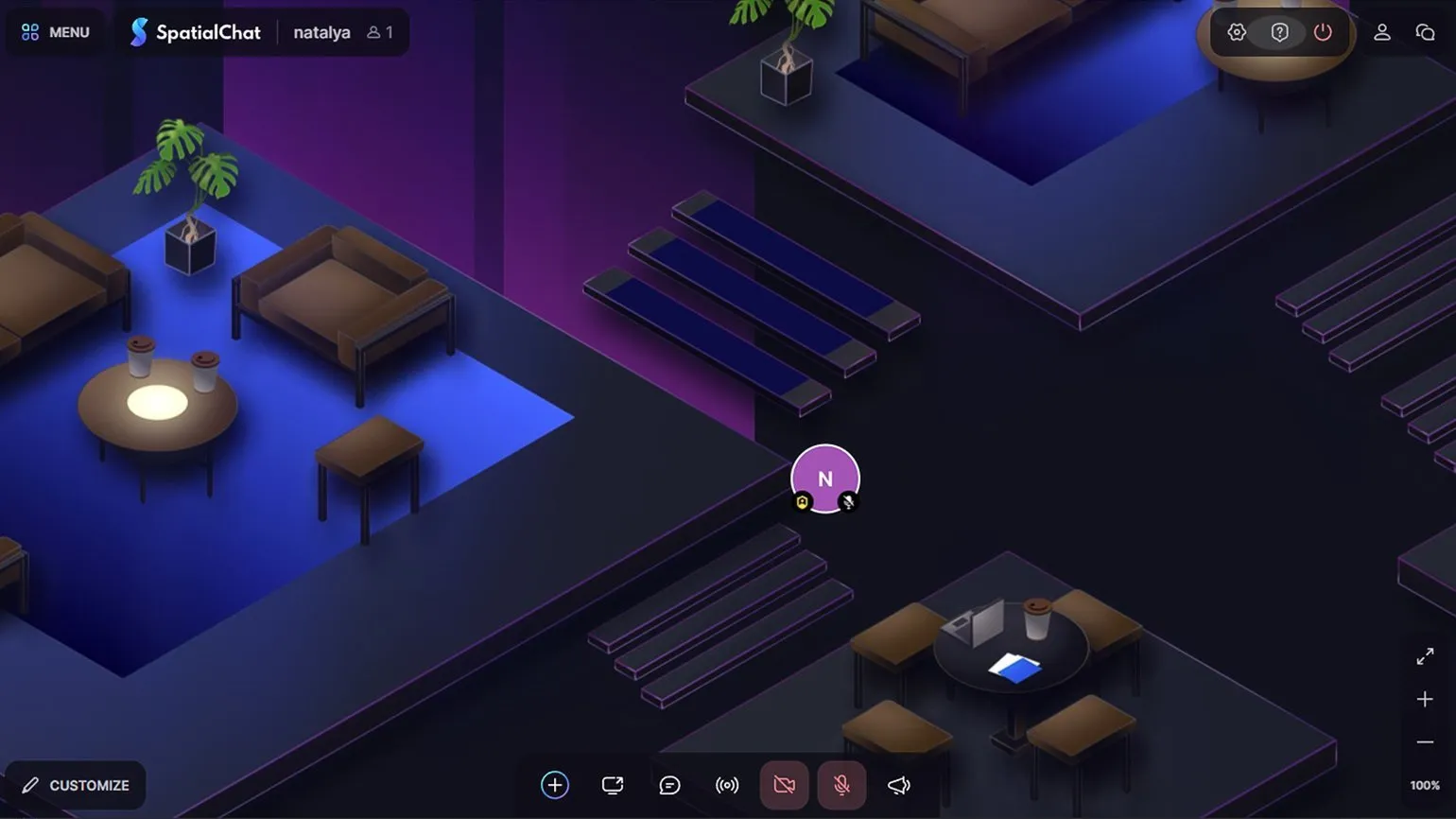
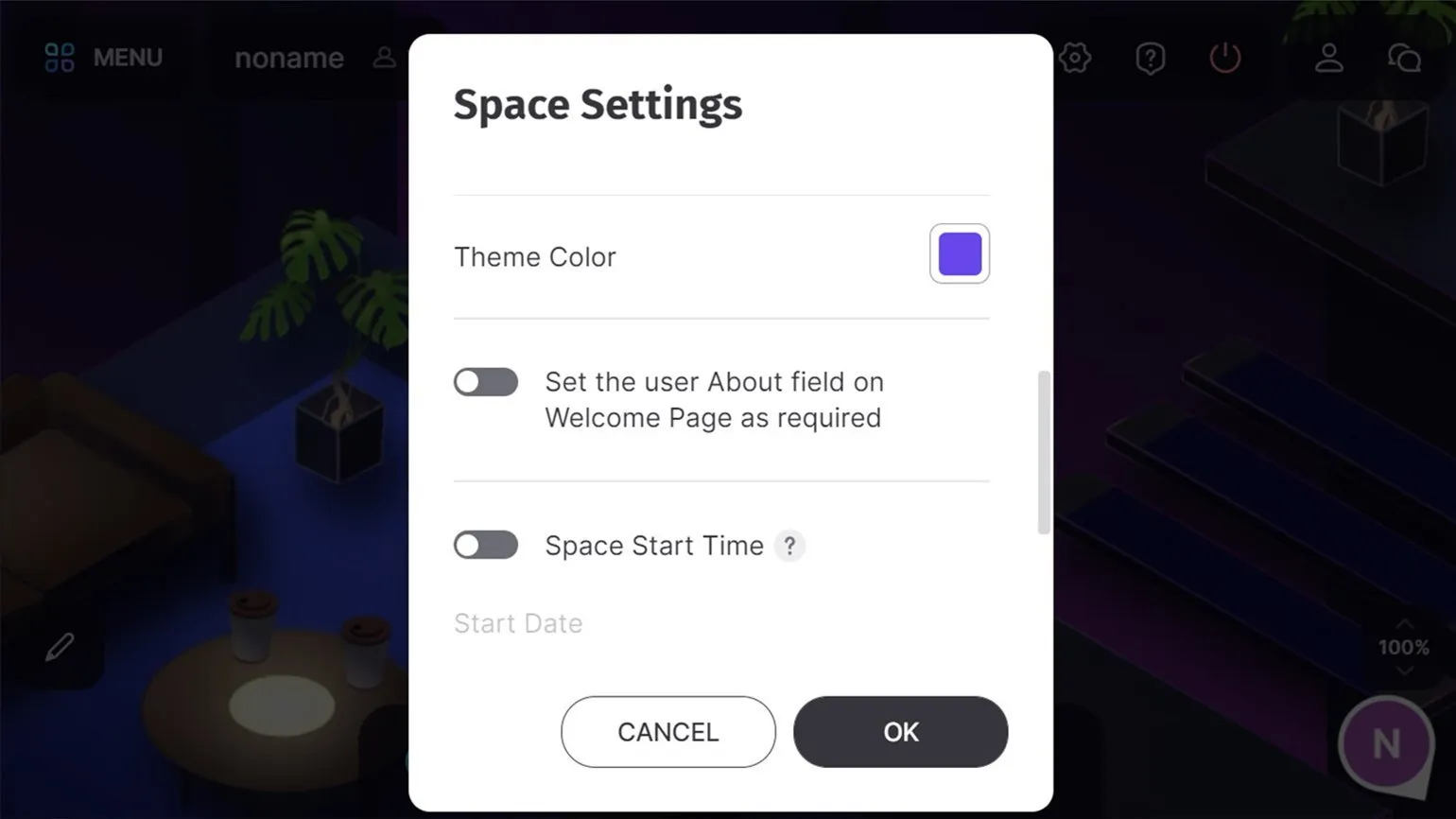
In the upper left corner is the Menu button. Clicking it opens a list containing the familiar profile editing window and a link to pricing plans. Below is the Space Settings section, where you can change the name, URL of the space, and the color of interface elements. You can also make the "About Me" field mandatory for all members. You can also set the date and time the space will open to users. If this toggle is disabled, participants will be able to access the link at any time.
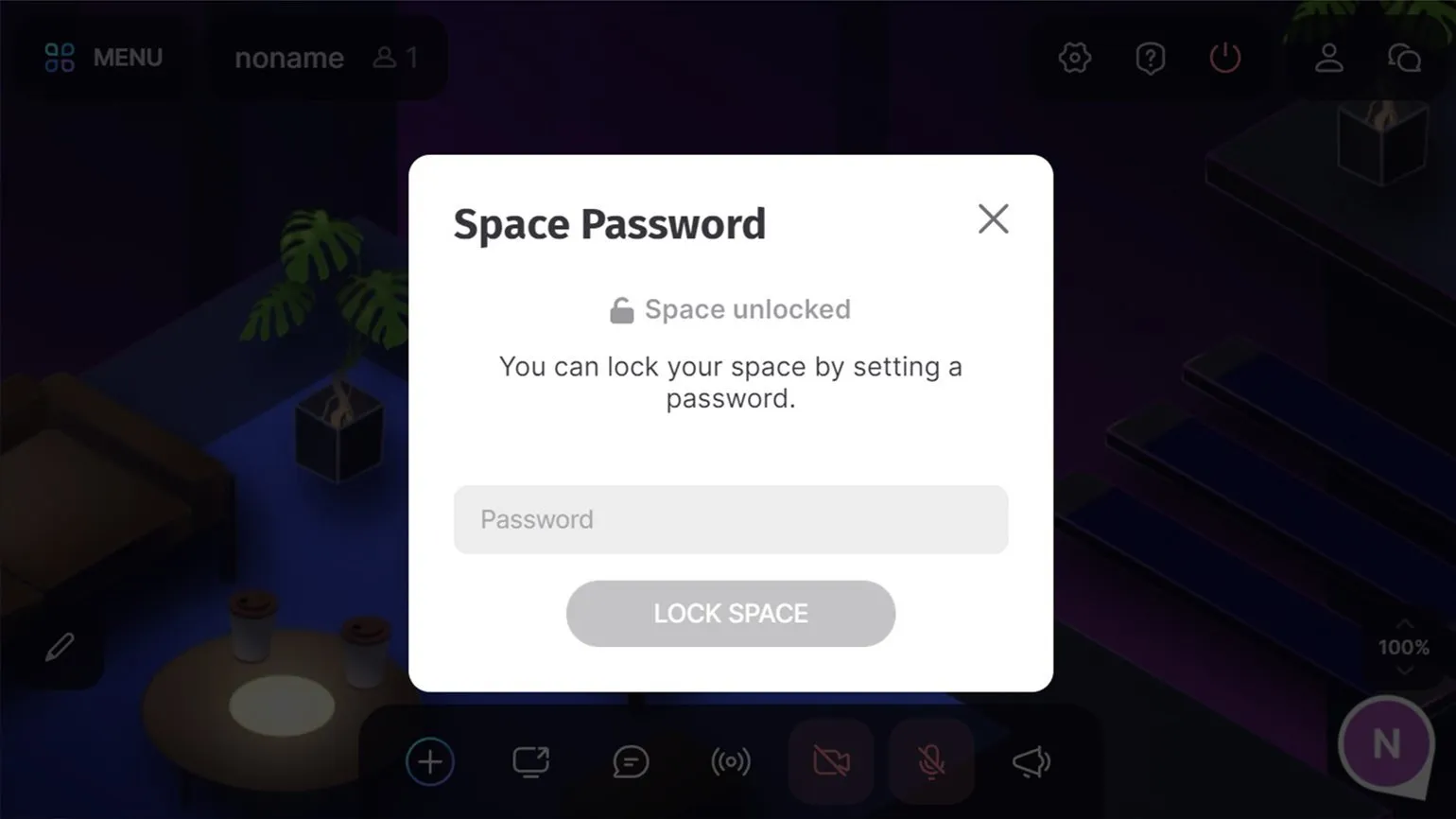
By default, everyone has access to your space, who has the URL. However, in the main menu, in the "Space Access Password" section, you can restrict access by setting a password.
The Room Permissions menu section is a key element of access control in created rooms. In this section, you can set specific actions permitted for participants in each room. Managing permissions allows you to ensure the necessary level of control and security, as well as optimize participant interaction within the platform. Properly setting permissions promotes more efficient resource use and improves user experience.
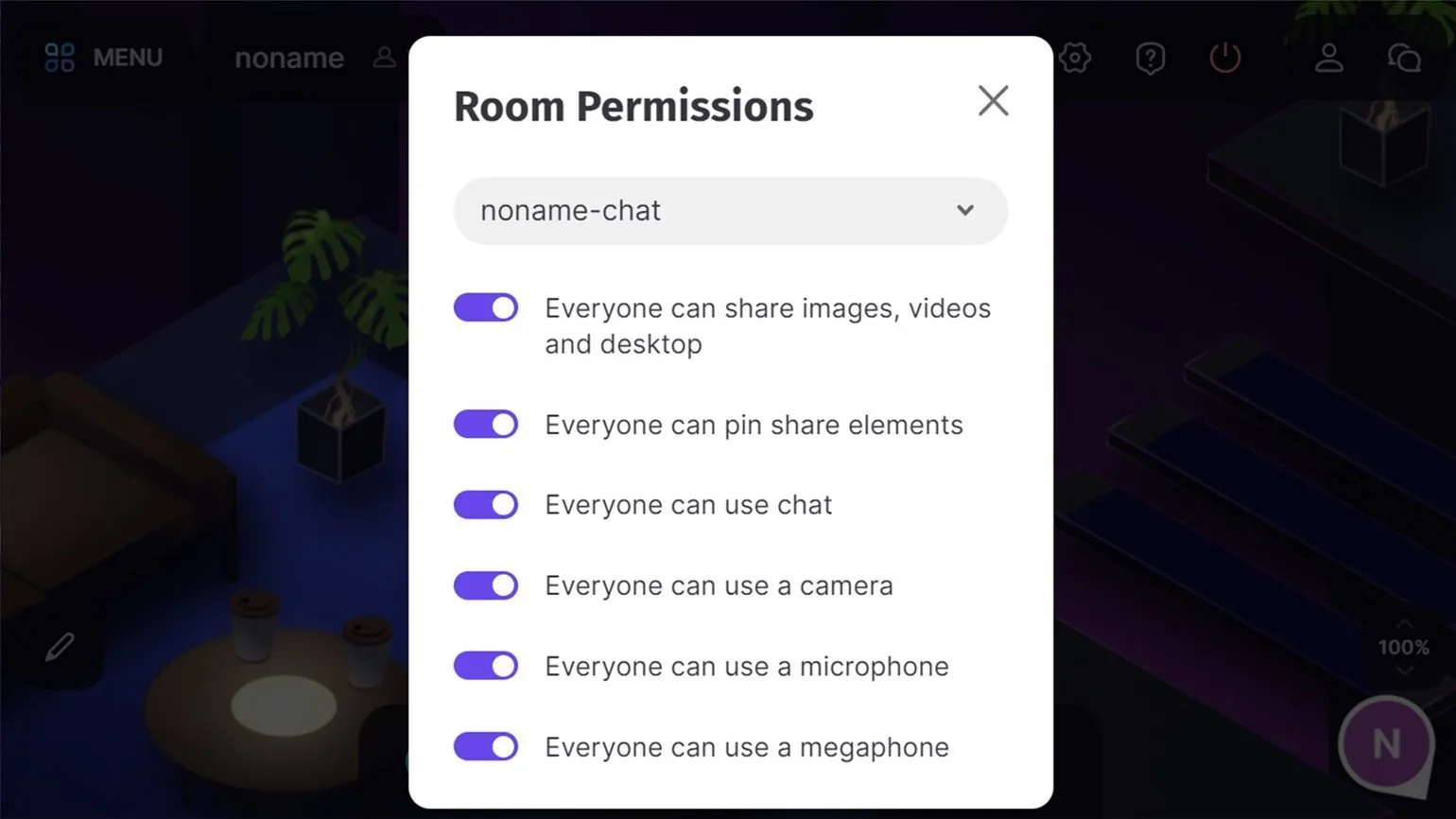
All members have the ability to do the following by default:
- share images, videos, and Screen sharing;
- pin items they've posted (pinned images, videos, or screen inserts won't disappear if the user who added them moves to another room or leaves the space entirely);
- write messages in the chat;
- turn on the webcam;
- speak through the microphone;
- use the "megaphone" (this feature allows all participants in the room to hear the speaker equally well, regardless of their location).
Configuring permissions depending on the format and goals of the event is an important aspect of management. Each room can be assigned a unique set of permissions, allowing you to tailor access to resources to specific needs. The administrator also has the ability to expand the rights of specific users on the fly, providing flexibility and control. In this article, we'll take a closer look at the possibilities of setting permissions and their impact on the effectiveness of events.
Now let's customize the appearance and characteristics of your room. To do this, click the "Customize" button in the lower right corner of the screen. A list of available settings will open on the left, where you can change the color scheme, fonts, and other design elements.
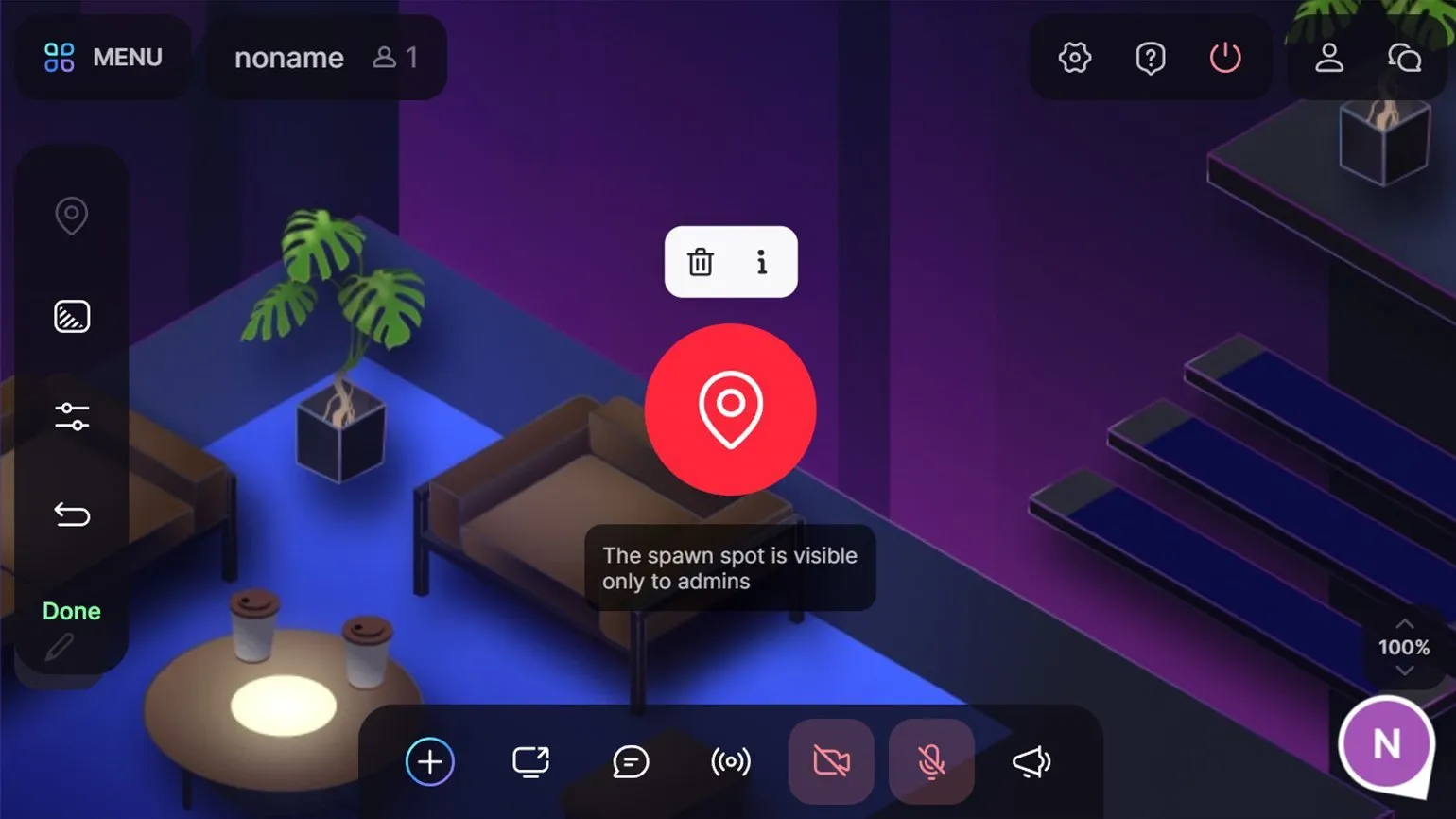
- Add Spawn Spot. By default, participants are placed in a random location in the room when they join. If you don't want them to get lost, or you want users to start the quest at a specific point, click "Add Spawn Spot" and place the red marker wherever you want. Only the administrator can see it. To delete a tag, click it, then click the trash can icon.
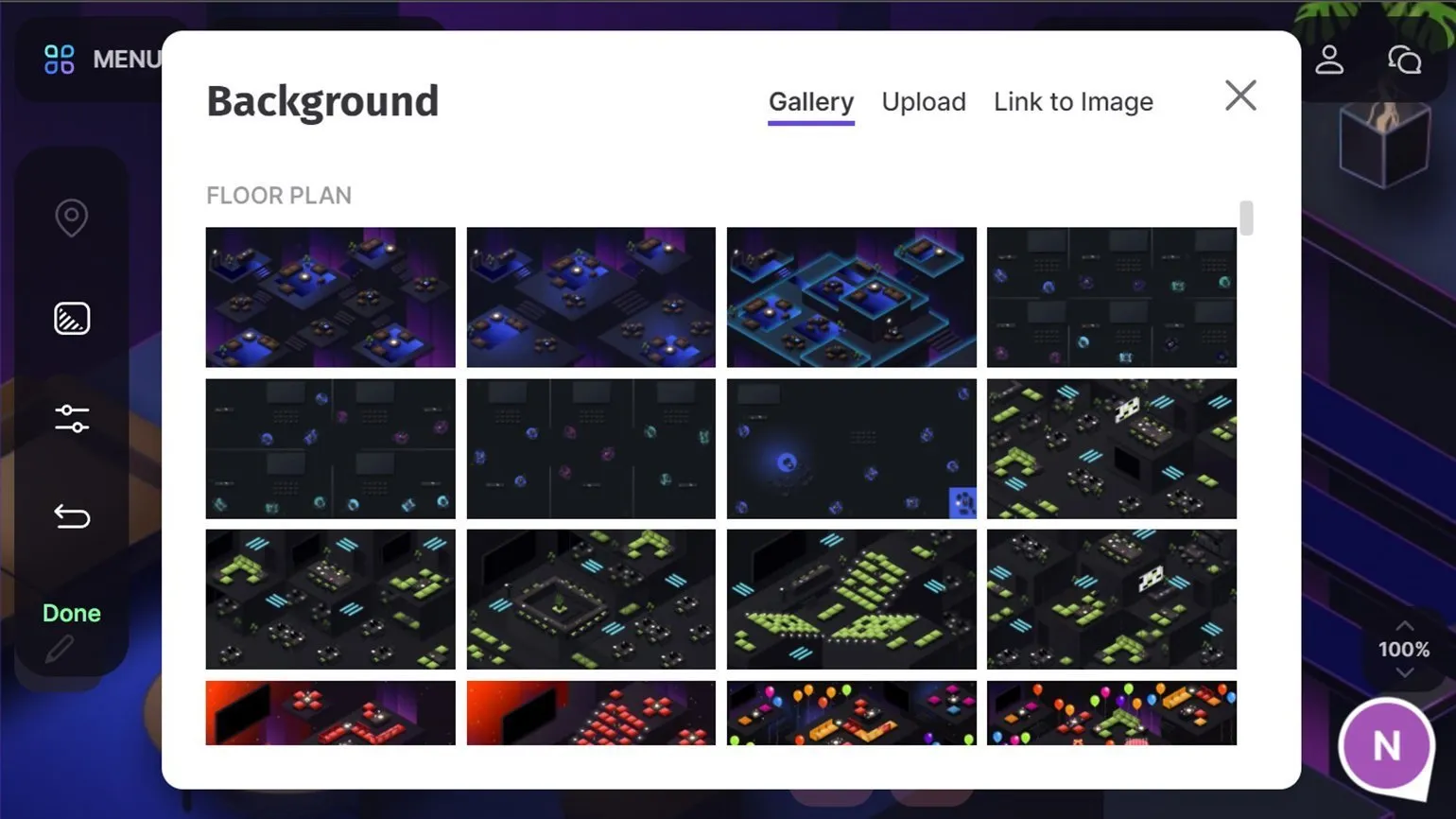
- Change Background — this is where you can select from the gallery, upload from your computer, or add a link to an image that will become the room background. The recommended image size is 3200 by 1800 pixels, and the file size should not exceed 10 megabytes.
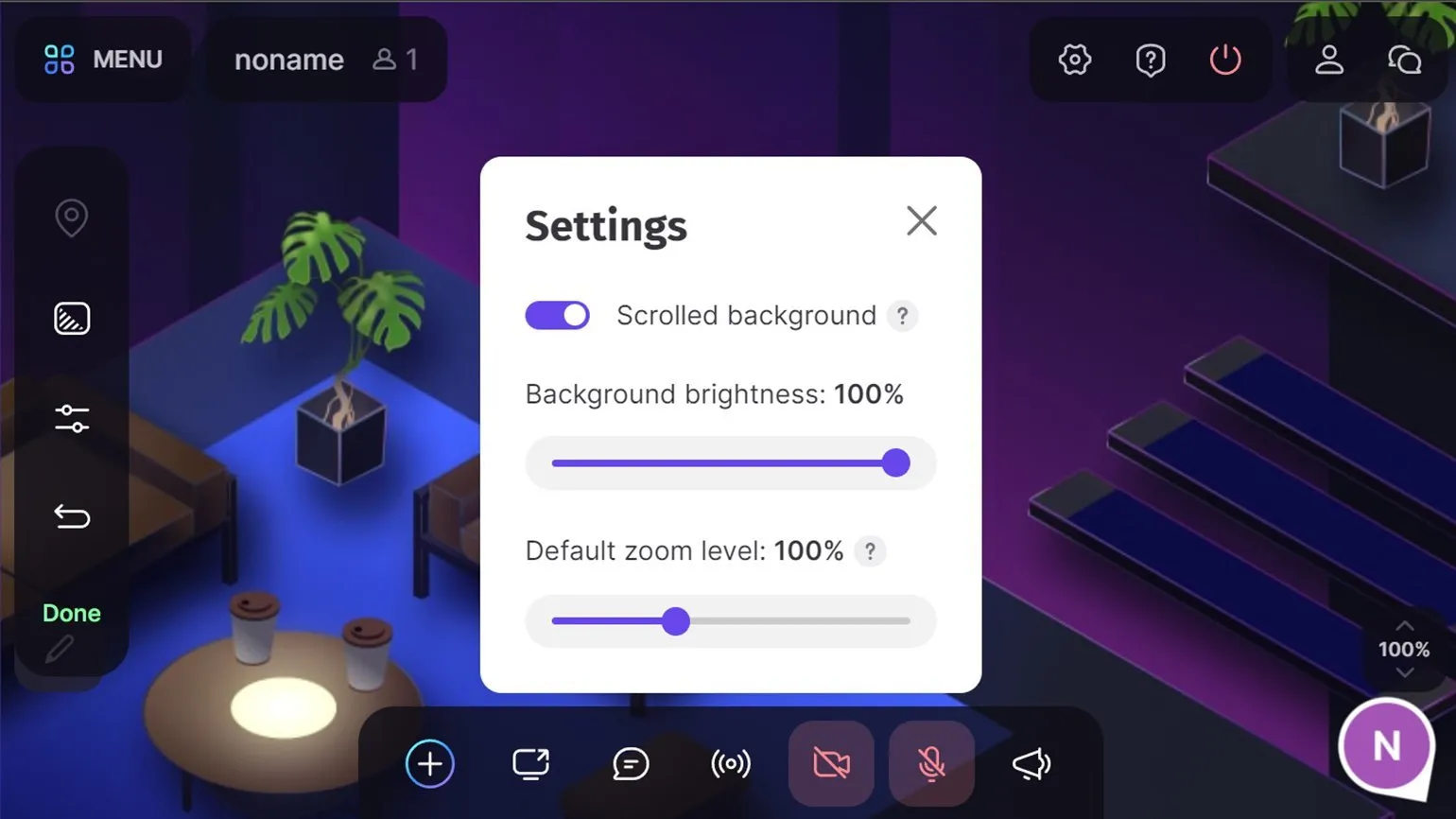
- Settings. Here we see the toggle switch for screen scrolling. If it's on, you can scroll the background horizontally and vertically by clicking and holding the left mouse button on any empty spot. If the toggle switch is off, this action will move the avatars (only for the user; such movement does not affect other participants), while the background image will remain static. You can also adjust the background brightness (for example, a dark room can be useful in quests) and the default screen scale for all participants. Of course, each user can change it themselves later.
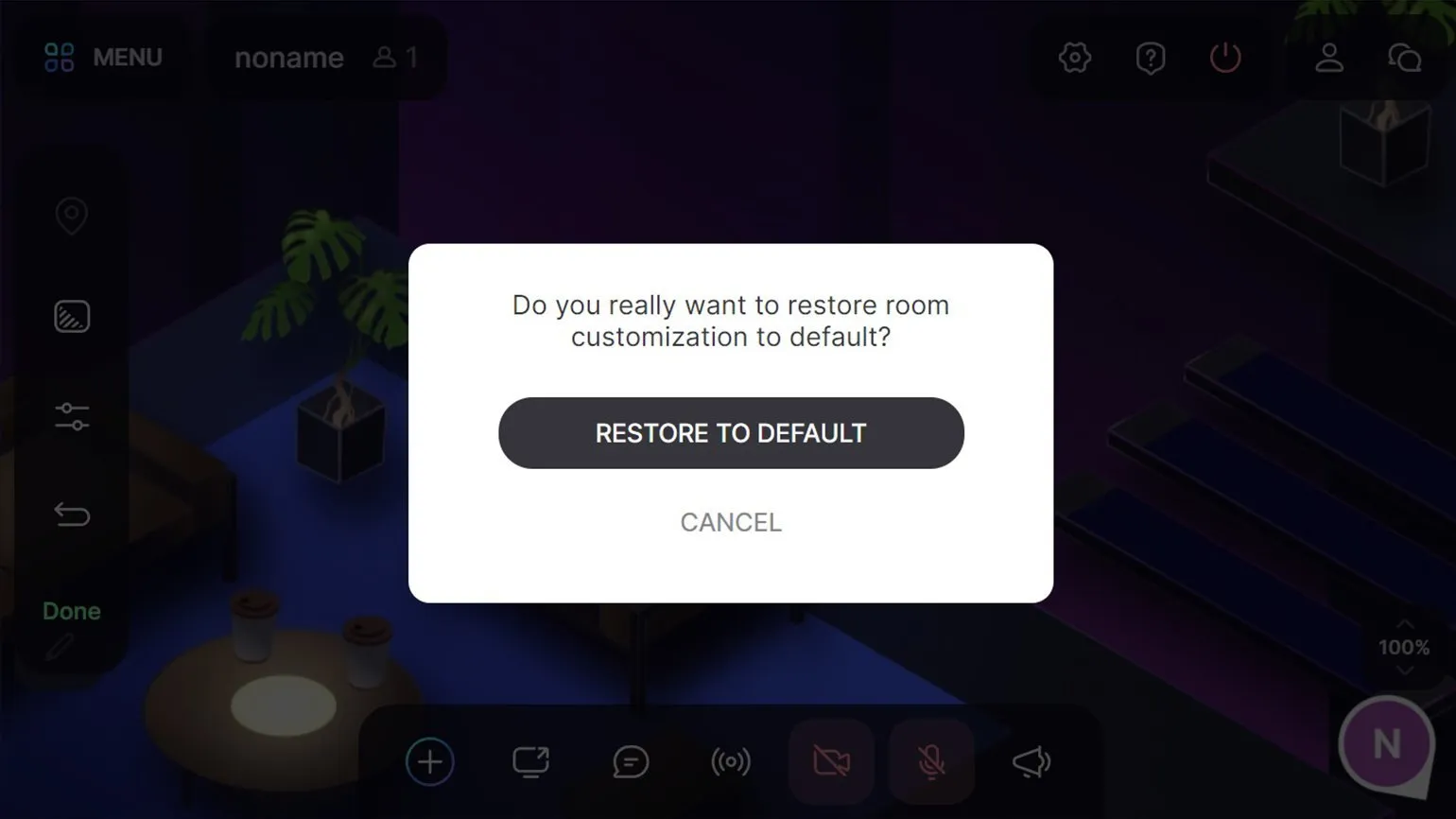
- Restore to Default. If you've been experimenting with customization settings and want to return everything to the way it was, this button will help. Just confirm that you really want to roll back the changes.
After you finish setting up the parameters, click the button "Done" to save your changes.
Before you begin decorating your room, it's a good idea to resize the screen for easier viewing. To do this, use the buttons located in the lower right corner. There is also a function to switch to full-screen mode, which removes unnecessary interface elements and allows you to focus on the design process.
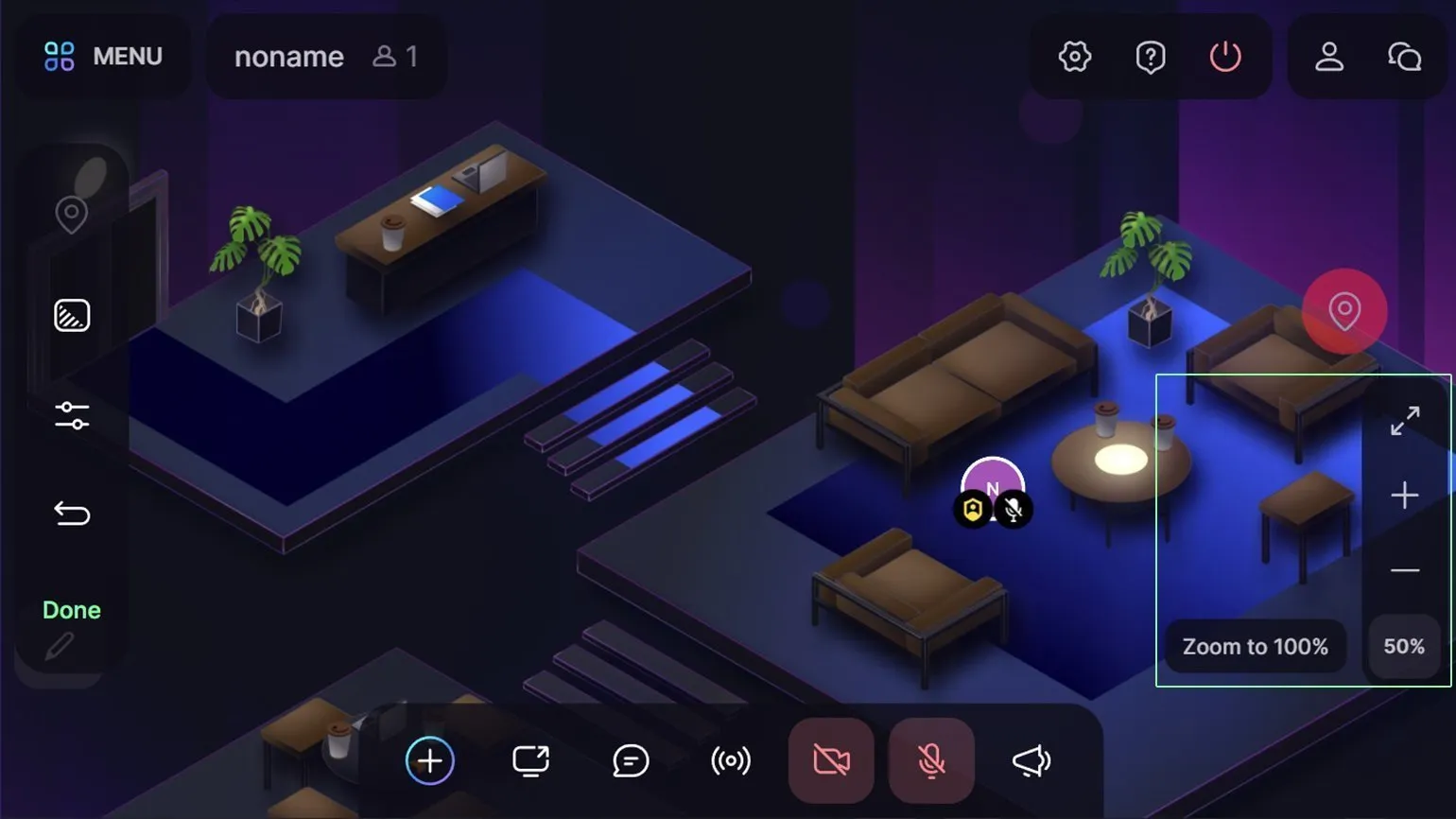
To view all available content formats that can be posted in your space, click the plus button in the bottom bar.
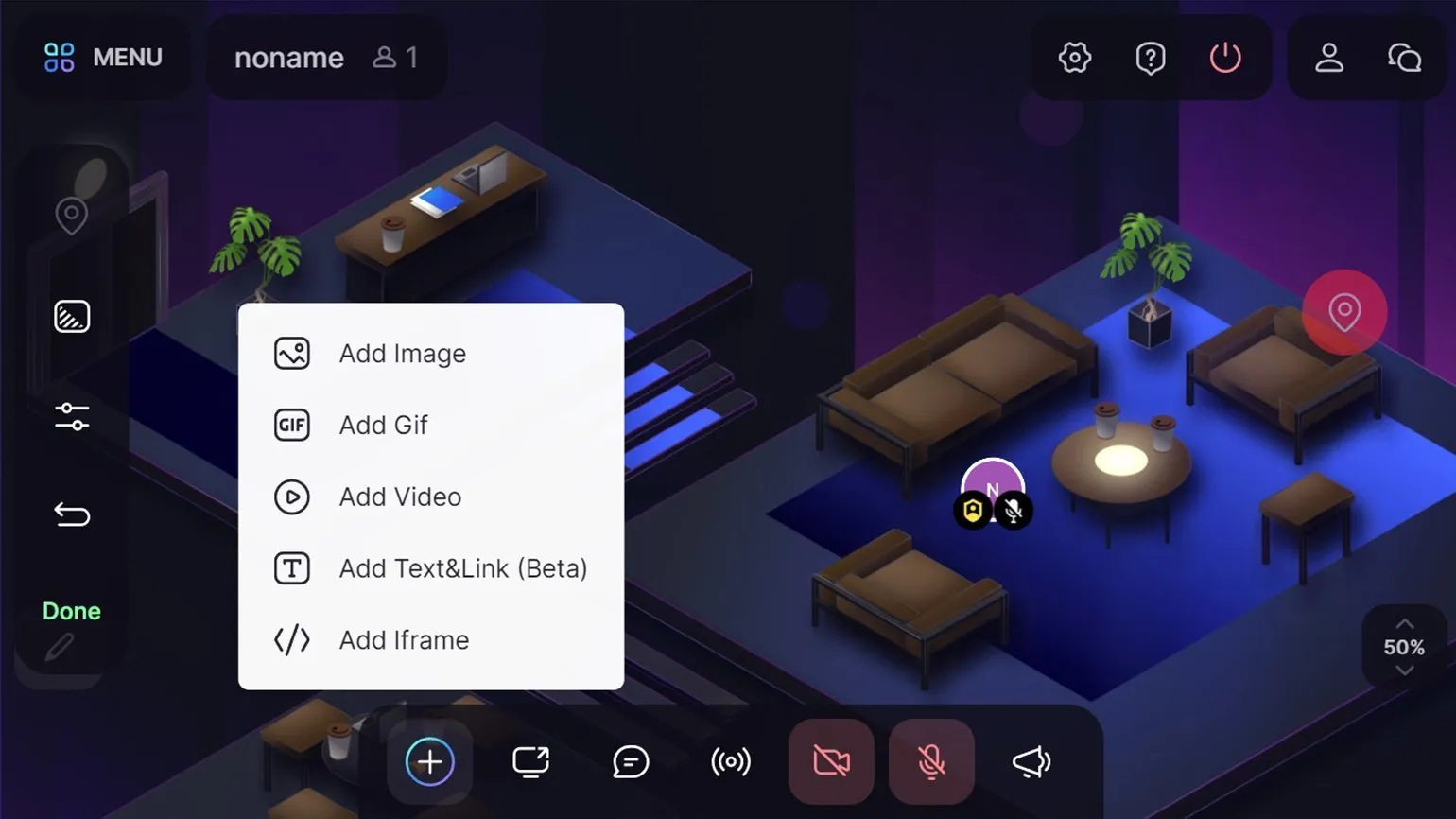
It's all pretty simple here.
- Add Image lets you upload a picture from your computer or attach it via a link.
- Add Gif adds gifs, animated stickers, emoji, and captions from the Giphy service database. To find a suitable gif, type a query in English in the search bar: for example, hello or funny cat.
- Add Video embeds a video from YouTube, Vimeo, or a Twitch broadcast. There is no internal search, so you will need to find the desired video in advance and copy the link. Not only publicly available videos work, but also videos with viewing via a link. Therefore, you can create your own videos, upload them to a private YouTube channel, and then share them with participants in SpatialChat. Only the administrator, host, and the guest who added the video can control playback - we will tell you more about user roles later. Playback is synchronized for everyone in the space.
- Add Text & Link helps you add a simple caption or link to the screen.
- Add Iframe embeds content into the space so that each participant can interact with it independently. This feature is very useful if you want to conduct a survey or quiz via Google Forms, add a video for offline viewing, or, for example, an online game. The embed code for the type can usually be found in different services via the Share/Send → Embed/<> menu.
Go to the bottom panel and find the Screen Share button. Clicking it will open a window where you can select which part of the screen you want to broadcast: your entire computer screen, a separate window (for example, a specific program), or a specific browser tab. To reduce the load on your computer and the participants' devices, we recommend using window or tab broadcasting. The Chrome browser has the option to broadcast audio from a selected tab. To do this, simply check the box next to the option "Provide access to audio on the tab."
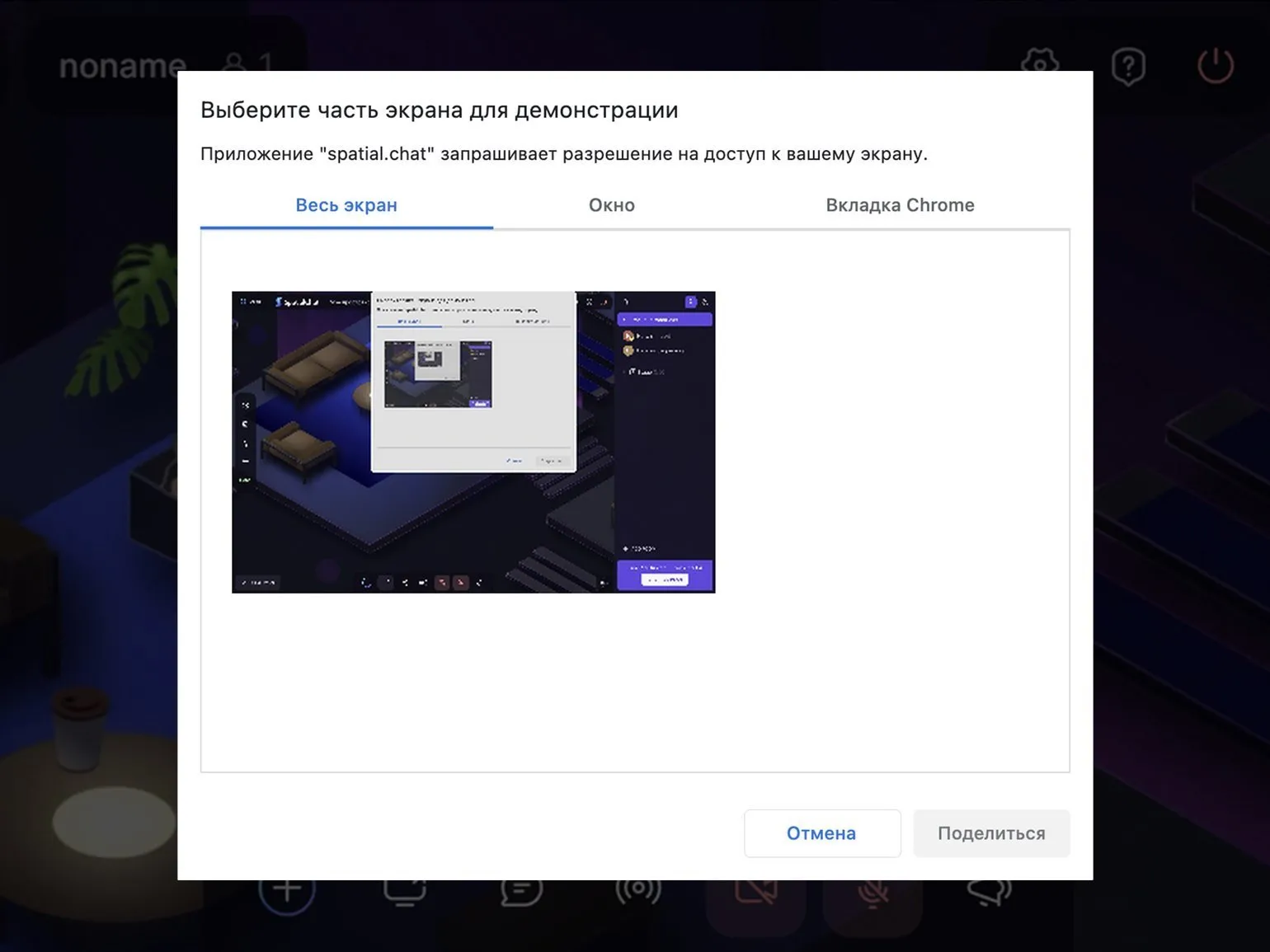
This feature opens up access to the entire internet. You can share presentations and educational materials, as well as use additional tools. For example, during a quest, you can broadcast a tab with a timer, which will help organize the process and make it more engaging.
When sharing your screen, it's important to remember that you can only control content, such as advancing presentation slides, in the active tab or window. To directly interact with content in SpatialChat, you need to use the Iframe embed feature. This allows you to integrate various elements and manage them more effectively during communication.
All elements placed in the space can be moved with the mouse, resized, and deleted. Images, videos, GIFs, and text can be pinned by left-clicking on an object and then clicking the corresponding icon. Pinned objects will remain in place even if the user who added them leaves the room. Please note that screen sharing cannot be pinned.
You have successfully created and configured your first room. Now you can invite participants or, if your event requires it, create additional rooms for more convenient collaboration.
To access the room management panel, click the person icon in the upper right corner of the screen. Then, hover over the desired room name in the menu that opens and click the pencil icon. This will allow you to edit the room's settings.
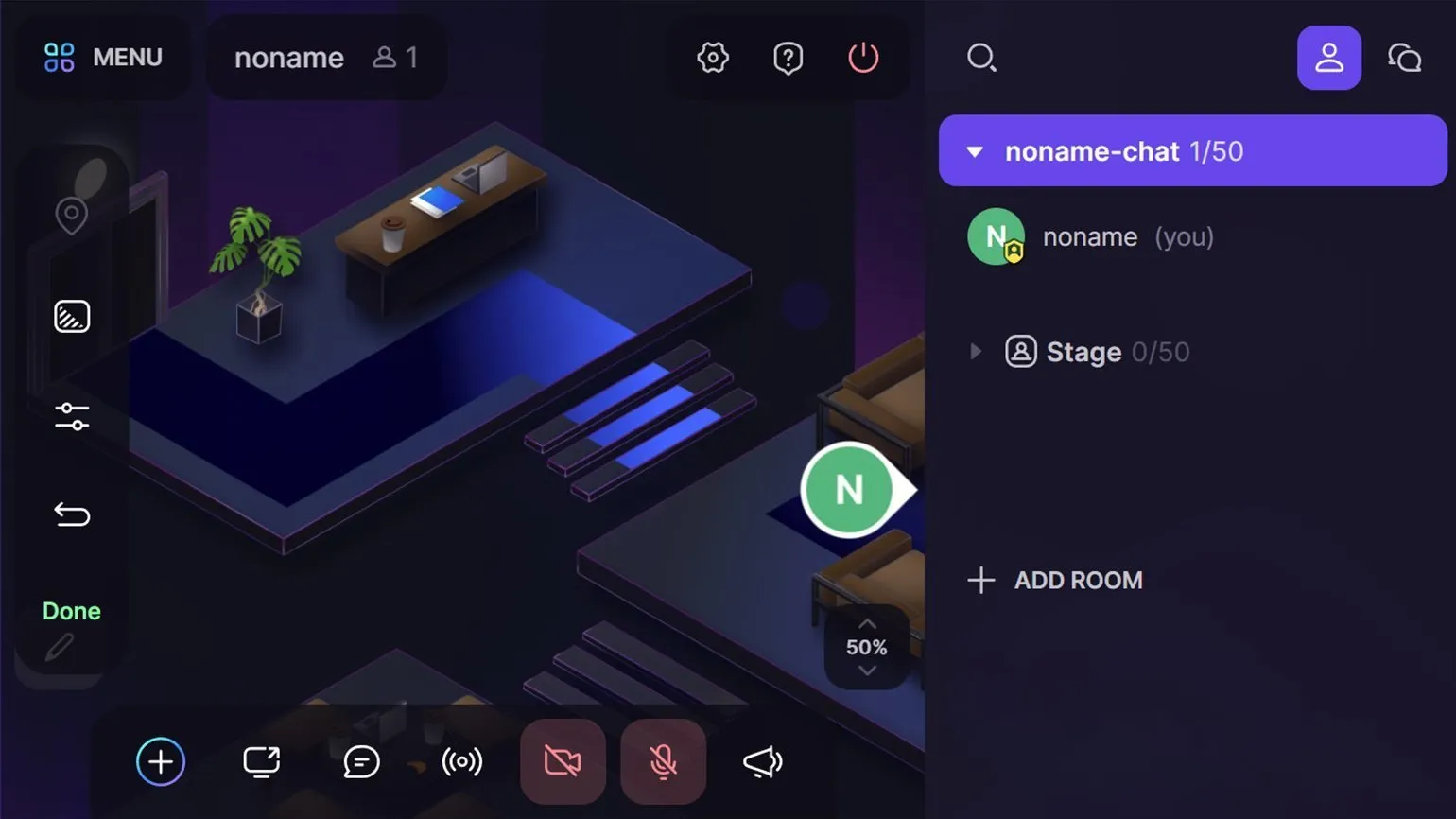
This panel allows you to effectively manage various functions. It provides users with a convenient interface for customizing parameters, monitoring the status and obtaining the necessary information. The control parameters are intuitive, allowing even beginners to quickly grasp the panel's capabilities. Furthermore, this tool provides a high degree of control and automation of processes, significantly simplifying task execution. Use this panel to optimize your workflow and increase productivity.
- change the name of the room;
- change its position in a list of several rooms (members are placed at the top by default);
- duplicate a room (this function duplicates all appearance settings, permissions, and added elements);
- group rooms (can be useful on paid plans if you create multiple rooms);
- set permissions for an individual room;
- set a password for access to the room (you must always have one open room that members can access);
- hide a room (members without extended host rights will not be able to see it; you cannot hide a single room);
- delete a room (but you also cannot delete a single room).
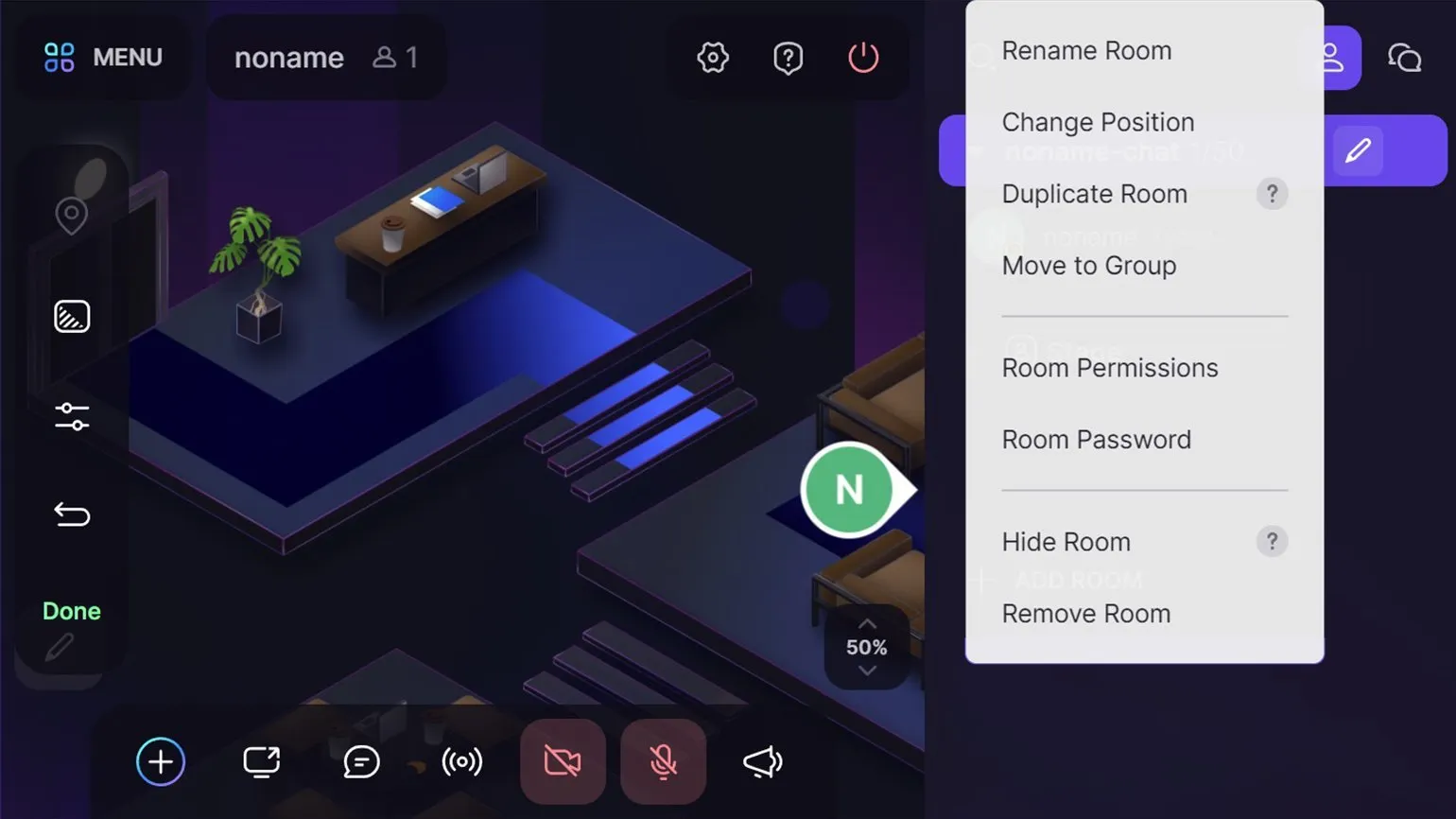
On the panel below there is a button «+ ADD ROOM». To create a new room, click this button, select the room type: Breakout, Stage or Audio, and enter a name. After completing these steps, the new room will be added to the list of available rooms.
When switching to another room by name in the list, please note that your screen sharing in the current room will stop and all unpinned objects will disappear. However, SpatialChat provides a warning dialog box that offers to pin elements in the room before switching. This prevents the loss of important information and ensures a comfortable interaction in the space.
Preparation is complete, now you can invite guests.
To organize a shared event, send participants the link to your space, which you received in the registration email. You can also go to the selected room and copy the URL, which looks like https://spatial.chat/s/your_space?room=123456, from the browser address bar. This will allow participants to immediately access the desired room.
It's time to consider access levels and determine what different categories of users can and cannot do in your space. Access levels play a key role in user rights management, ensuring security and control over functionality. Understanding these levels allows you to optimize interaction with the platform and customize it to meet the specific needs of your users. Properly assigning access rights ensures data protection and simplifies administration. At each access level, users have their own unique capabilities, which allows for effective collaboration and resource management.
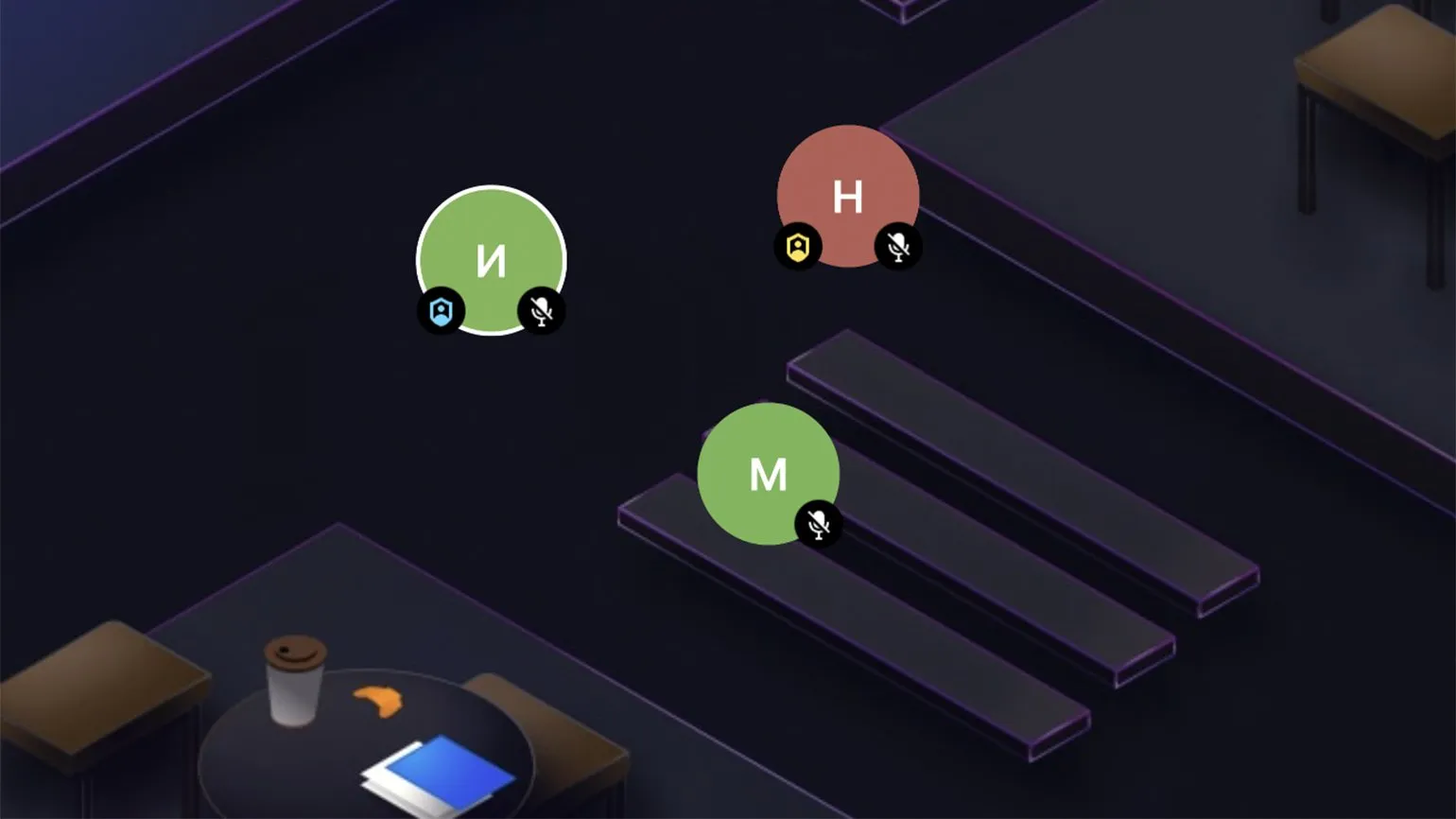
Guests Guests are regular participants who can enter rooms, but they must follow the rules set by the administrator—you. For example, you can restrict microphone use or prohibit pinning. You can learn more about attendee permissions in the previous sections.
As an administrator, you can promote any guest to a host by assigning them a blue badge and granting them enhanced permissions. Hosts aren't subject to room or space restrictions, allowing them to move, pin, and delete items created by other participants, including you. The host also has the right to mute guests' cameras and microphones and, if necessary, remove them from the space. It's important to note that only the host and administrator have access to the Broadcast feature, which acts as a "megaphone" and allows you to address all participants in all rooms simultaneously. This makes event management more efficient and organized.
The administrator has full rights to manage the space. They can create new rooms, change settings, and manage the permissions of other participants. Additionally, the administrator has the ability to move, pin, and delete objects added by other users. You can delegate administrator rights to a colleague by sending them a link with a password for access. The administrator's avatar is visually distinguished by a yellow badge, making it easy to identify their role in the space.
Let's look at the communication tools in SpatialChat. In addition to the camera and microphone, the platform offers reactions and text chat features. These elements significantly improve user interaction, allowing you to exchange emotions and messages in real time. The intuitive interface makes communication more comfortable and effective.
The reactions window is located at the bottom of the screen. You can type a message or select an emoji, and then click the "Send" button to have your message appear next to your avatar. Please note that if the administrator has disabled access to the chat, users will not be able to use reactions.
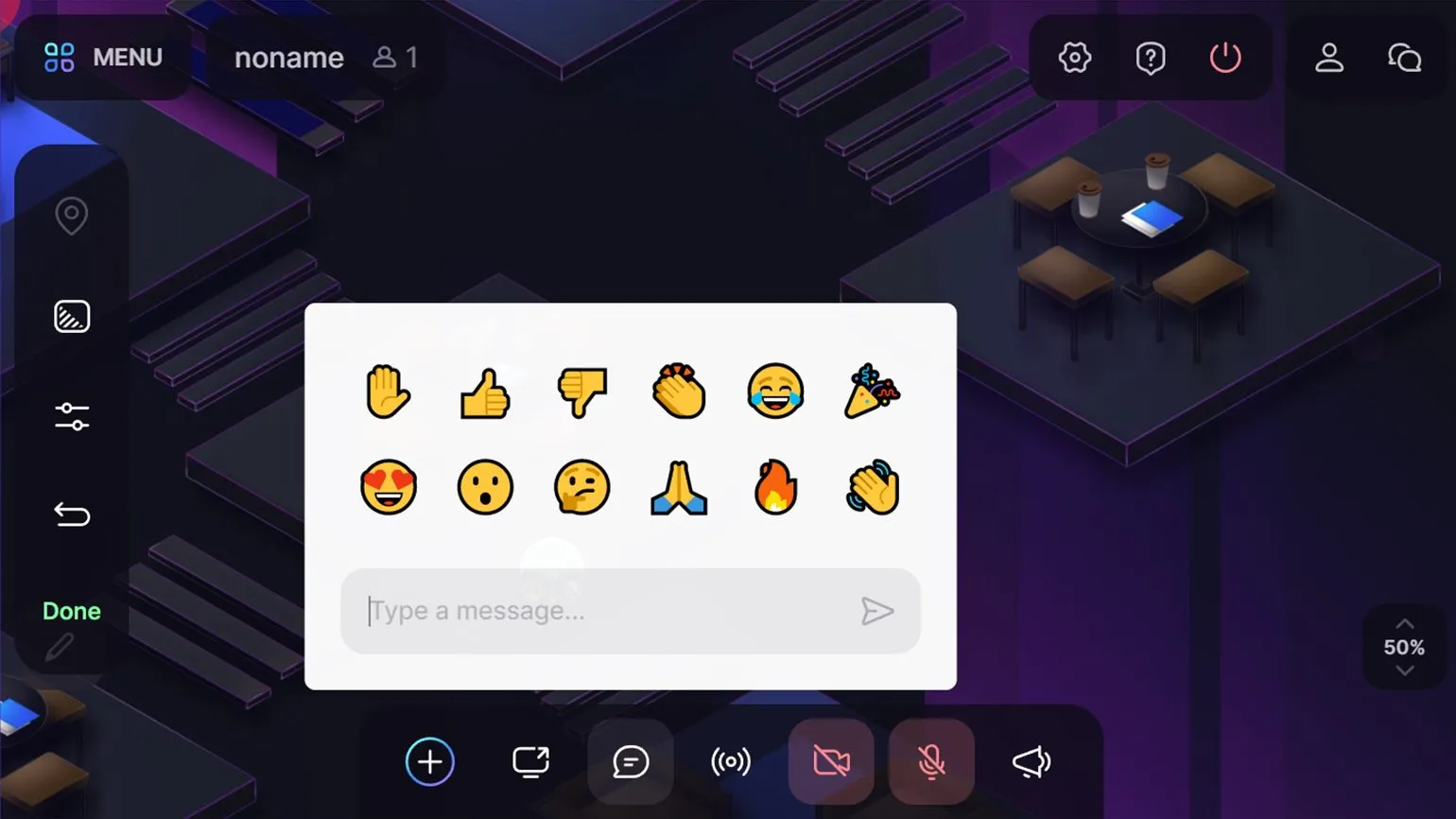
Window The chat is located in the upper right corner next to the room settings panel. To open it, click the cloud icon. Each room has its own chat where users can exchange messages. They can send messages to all room participants in the "Room" tab or write private messages in the "Direct" tab. This functionality provides convenient interaction and the ability to communicate both in a group and individually. Navigating the space is intuitive. To do this, left-click on your avatar, hold it, and move it. If you get lost, don't worry. Expand the list of participants by clicking the room name in the right panel, and click your name. The screen will automatically move to your avatar. You can search for other users in the same way. If the list of participants is too large, use the search bar to quickly find the name you need.
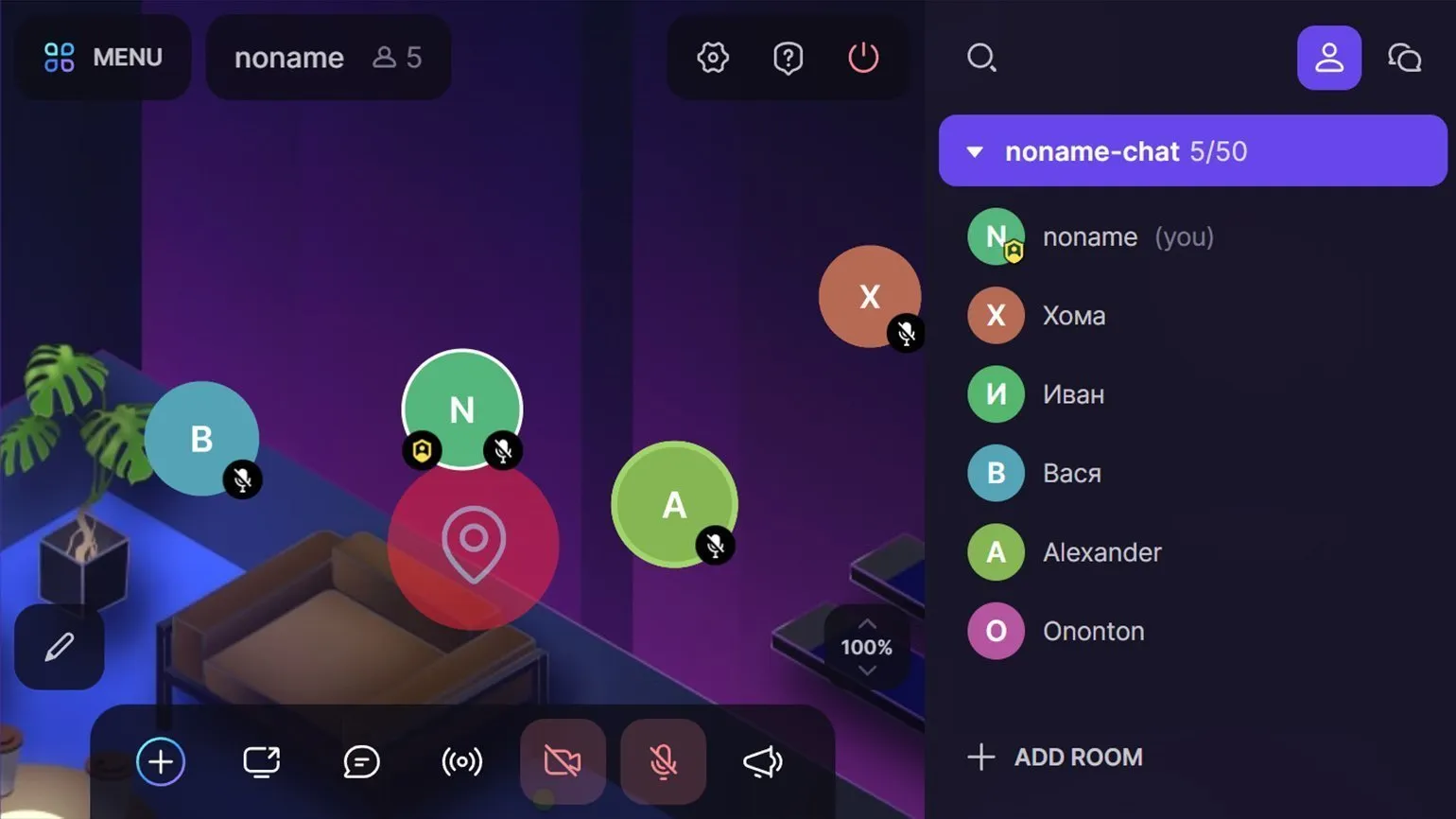
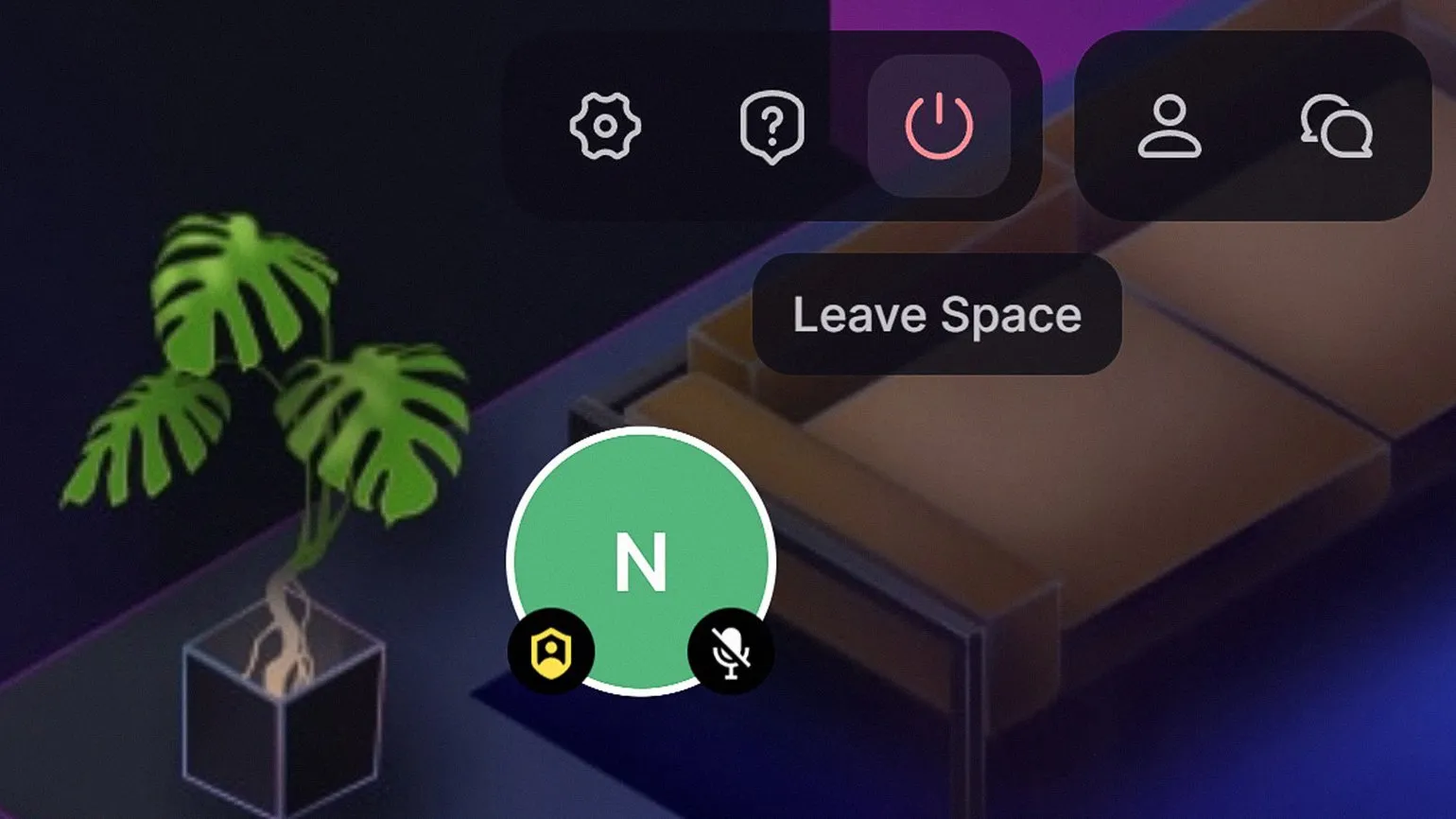
To leave the room, Click the red icon at the top of the screen or close the SpatialChat tab. This will allow you to quickly and easily end the session.
Now you are ready to create rooms and add various elements, set up permissions Users, moderate meetings, and explore the extensive capabilities of this service. We wish you successful online events!
Reading is an important aspect of our lives, contributing to the development of thinking and broadening our horizons. It helps improve communication skills and enriches vocabulary. Furthermore, reading helps reduce stress and improve concentration. Regularly reading books, articles, and other literature is an excellent way to improve your general culture and education. The variety of genres and topics allows everyone to find something of interest. Invest time in reading to enrich your inner world and improve your quality of life.
- How the Notion app is useful for teachers, educators, and methodologists
- 9 services that will help you create an engaging online course
- 6 useful resources in English for educational designers
- 12 tools for educational online events