Contents:
Learn: Unity Game Developer Profession from Scratch
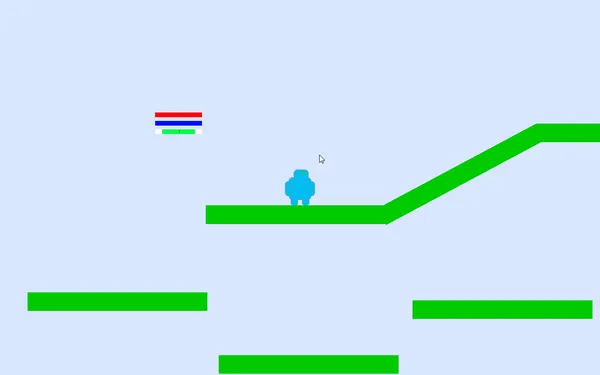
Learn MoreThis object is not visually appealing and is just a set of simple shapes. However, its appearance will change significantly with the addition of animation. Animation can transform static elements, giving them dynamism and interest. This will help attract user attention and make content more engaging. Using animation in design can improve user experience, increase engagement, and make a project more memorable.
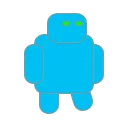
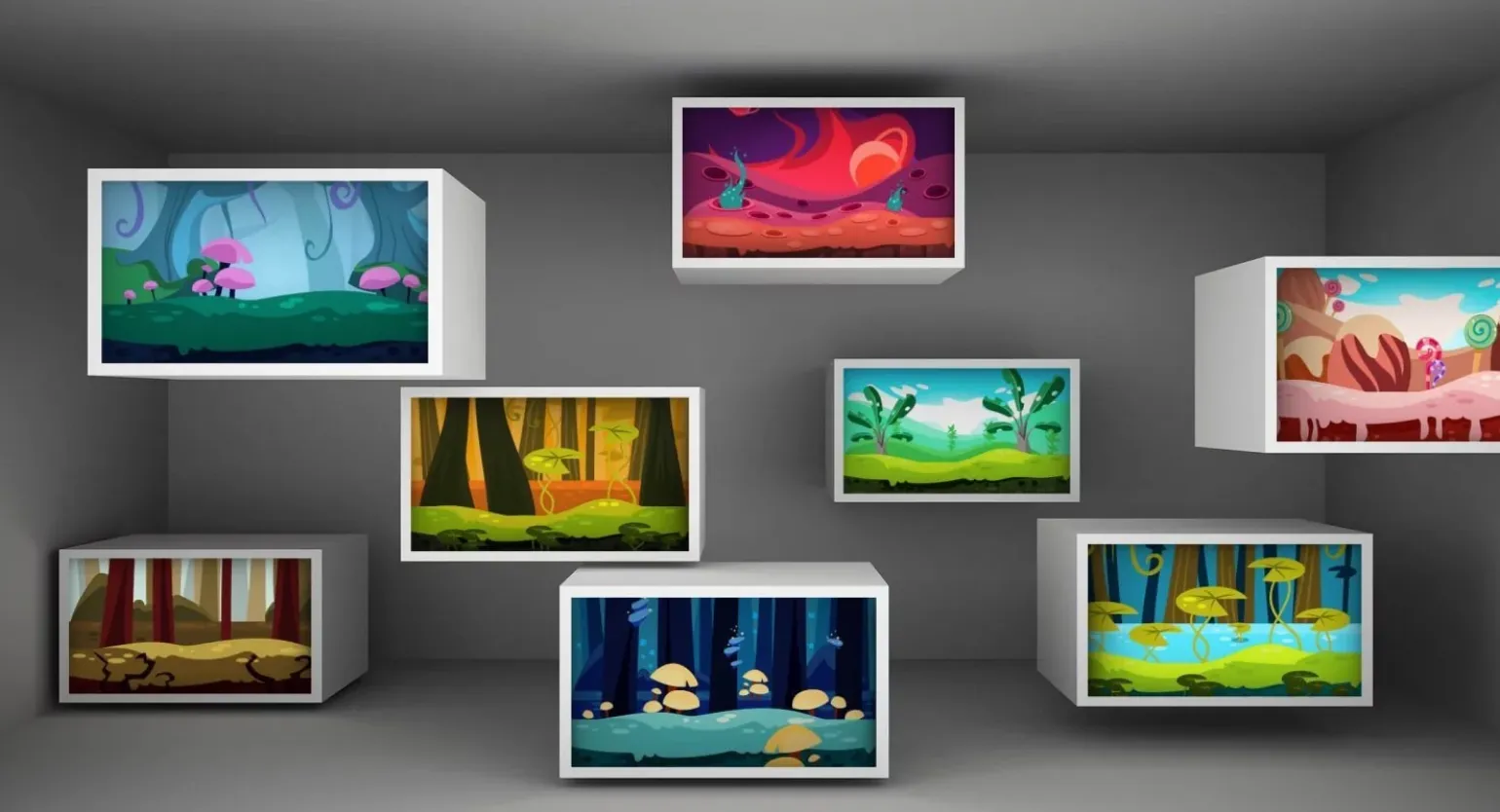
The character has become more expressive and interesting, which makes him more attractive to viewers. Despite the lack of external changes, its new charisma and cheerfulness significantly improve the user experience. Animation allows you to add dynamism and life not only to interface elements but also to background images. It can create a sense of movement that will attract users' attention and make the site more appealing. For example, you can use animation to create a smooth color transition or add textures that change depending on the time of day. Background animation can include effects such as slowly moving images, appearing and disappearing elements, and changing brightness and contrast. These techniques not only improve visual perception but also enhance the user experience, making the site more interactive and memorable. Using animation in background design can have a positive impact on SEO, increasing user time on page and reducing bounce rates.
- swaying waves;
- skyscraper glare;
- windows fading on and off;
- twinkling stars, and so on.
Animation plays an important role in creating engaging interfaces. It can improve the user experience by adding dynamism and visual appeal. Iridescent health bars and glittering buttons not only attract attention but also make interacting with the app more intuitive. For example, using a rotating gear instead of the standard "Loading..." text will not only decorate the project but also create a sense of activity and progress. Animation helps users better perceive information and makes the interface more alive.

The mini-game associated with this article, as well as all the necessary assets, are available in the GitHub repository. If you want to learn how to create games from scratch, we recommend you consider enrolling in the "Game Developer Profession in Unity" course. This course will help you gain the necessary skills and knowledge for successful game development.
In Unity, animation is created using a variety of tools and methods. The primary tool for creating animation is the Animation Editor, which allows users to edit animation clips and manage animation parameters. Using the Animation Controller, you can organize and manage various animations for a character or object.
Also important is the animation mechanics system, which allows for smooth transitions between different animations. To create animation in Unity, you can use both built-in tools and import animations from third-party programs such as Blender or Maya. One key aspect is the use of animation curves to fine-tune object movement.
Thus, Unity provides developers with powerful tools for creating high-quality animation, which can significantly improve the visual perception of games and applications.
- scripts;
- frames;
- skeletons.
A script modifies the parameters of an object depending on specified conditions, such as changing scales, adding color, and other characteristics.
Frame-based animation is a more complex approach to creating animation, in which several sprites - two-dimensional images - are developed for different states of an object, such as standing, moving, jumping, or attacking. These sprites are sequentially replaced with each other at a specified time interval, which helps achieve smooth and realistic animation. This method is widely used in video games and animation projects, as it allows for each character's action to be worked out in detail, creating an impressive visual representation.
Skeletons are a more complex approach to animation, allowing you to use a single sprite and give it movement by changing the position of individual parts. This method provides flexibility and realism in animation, making it popular in game development and animation. Skeletons allow you to create smooth and dynamic character movements, significantly improving visual perception and user interaction.
In this article, we will focus on scripted and frame-by-frame animation in Unity. Skeletal animation requires the use of specialized assets and is more complex to master. We will discuss in detail the principles of working with the two main types of animation, their features, and application in game development. This will help you better understand how to effectively use animation in your Unity projects.
When creating a character and adding a sprite to them, it is important to pay attention to the character's facing direction. It often happens that a character constantly looks in one direction, even when moving in a different direction. This can negatively impact the perception of the game and interaction with the surrounding world. To improve the player experience, it's necessary to dynamically change the character's gaze direction depending on their movement. This will create a more natural and engaging character behavior, increasing player engagement.
Creating a mirrored version of sprites is not an optimal solution, as it requires additional time and effort. A more efficient approach would be to develop a script that allows for object rotation. This method will provide flexibility and simplify the graphics workflow.
Add a new field to the Character.cs file. This will expand the class's functionality and improve its interaction with other system components. Proper code organization and the addition of new properties will help improve performance and simplify future project maintenance. Ensure that the new field is consistent with the overall coding style and does not disrupt the application's architecture.
Create a method for sprite rotation. This method will be responsible for changing the sprite's rotation angle, which will allow for the creation of a rotation effect in a game or application. It is important to consider rotation parameters, such as speed and direction, to ensure smooth animation. Pay attention to performance, as frequently updating the angle can impact the overall performance of the application. Proper implementation of this method can improve visual effects and user interaction with objects on the screen.
The object receives the direction of movement and changes its scale along the X axis. Multiplying by -1 allows you to "flip" the object, which can be useful in various graphics and animation applications. This technique is often used to create mirror images and achieve symmetry in designs.
In the Update() method, you must implement a call to the Spin() method. This will ensure that the object rotates in every frame of the game, which is an important aspect for dynamic gameplay. Proper integration of the Spin() method into Update() will ensure smooth animation and improve player interaction.
Now the character will change direction. This will allow it to more effectively interact with the world around it and adapt to changing conditions. Changing direction adds an element of dynamism to the game, making the process more engaging and interactive. This approach not only enriches the gaming experience but also opens up new possibilities for strategy and tactics. Now users will have better control over their character, which will increase their engagement and interest in the game.
To work with frame-by-frame animation, it is necessary to create a set of sprites for each character state. This will help achieve smooth animation and realistic movements. Sprites representing various poses and actions of the player form the basis of the animation, providing a clear visualization of changes depending on game situations. Proper organization and optimization of these sprites will help improve game performance and make it more engaging for players.
- Idle — standing still;
- Run — walking or running;
- Jump — jumping;
- Attack — attacking.
Sprites should have slight differences so that the movement between them is noticeable. This will help create more natural animation and improve visual perception. Variety in sprite design contributes to more dynamic and engaging content, which is especially important for web design and game graphics. Optimizing sprites based on their differences helps ensure smooth animation and improve user experience.
The Idle state refers to the idle state of a system or device when it is not performing any active tasks. In this mode, resources are not used, which helps save energy and extend the lifespan of the hardware. It is important to understand that although the device is idle, it can still respond to certain commands or events. Optimizing idle state performance can improve overall system performance and reduce power consumption, which is especially important for mobile devices and servers. Effective idle state management improves the user experience and extends battery life.
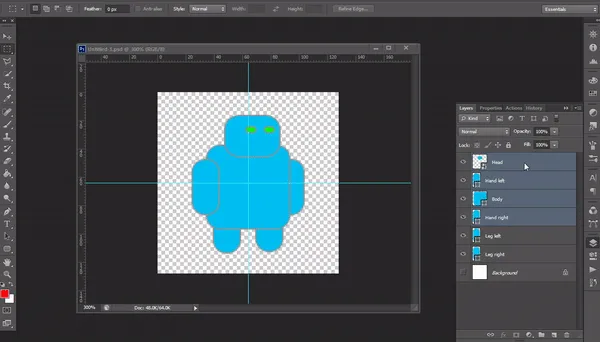
Move the character in Photoshop and save each frame as a separate file. Come up with names that will help you easily navigate the animation steps, for example: Robot_Idle1.png, Robot_Attack2.png, etc. This will simplify the process of further work with animation and organize your files.
It is recommended to create separate folders for each state, which will greatly simplify working with sprites. This will help organize files and provide more convenient access to the necessary resources. Creating a structured file system not only speeds up the development process but also minimizes the likelihood of errors when using graphic elements.
Add the finished sprites to the assets folder of your project. After that, select the character in the list of objects and go to the Window menu, then select Animation. This will allow you to customize the animation of your character using the downloaded sprites.
After that, click the «Create» button and select a directory to save the animation. It is recommended to save all animations in a separate folder for convenience. The file name can be set in the format Character_Idle.anim or Character_Jump.anim. The first part of the name indicates the object, and the second part indicates its state. This approach makes it easier to organize and find animations in the future.
Drag the desired sprites to the project timeline.
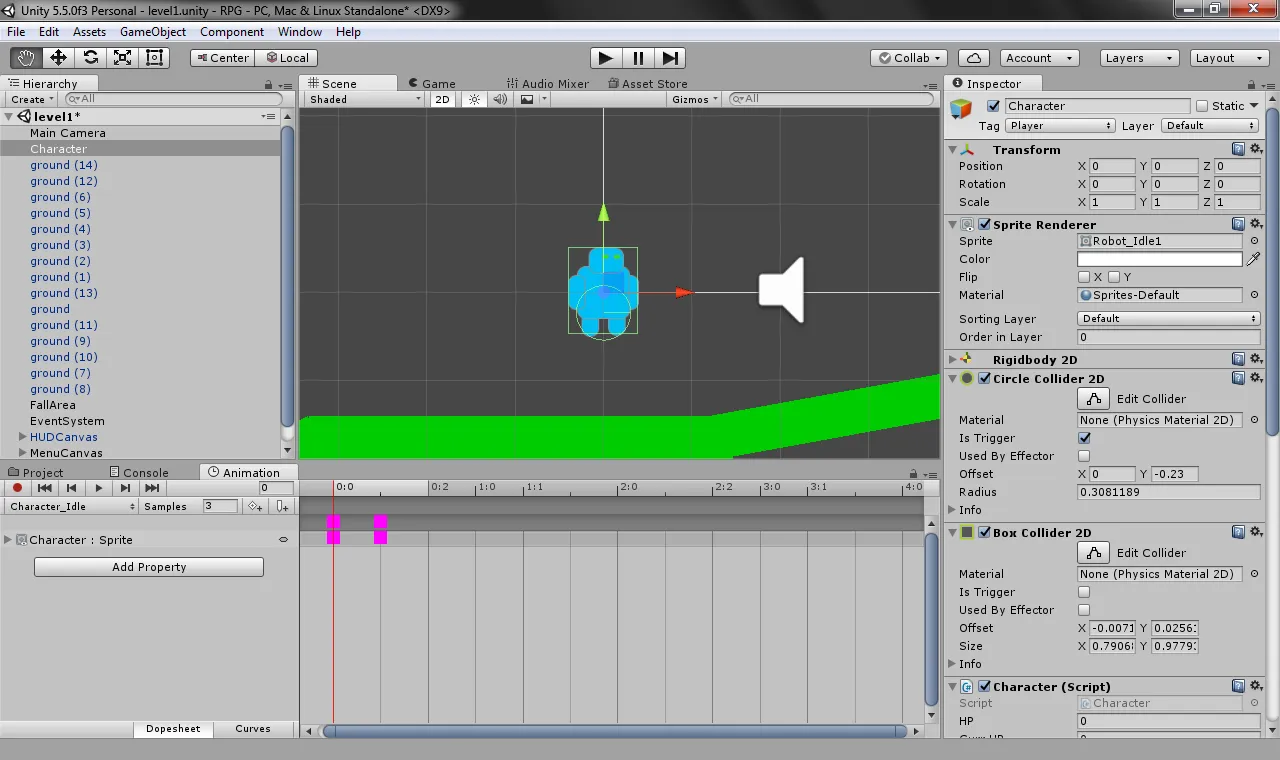
Start the animation by clicking the Play button. Because the number of frames is small, they may change too quickly. To improve the animation's visual appeal, adjust the Samples parameter. The default value is 60, but you can try 12, 6, 3, or any other value that best suits your animation. Animation in a game is presented as dynamic visual design that brings gameplay to life. It includes various effects, such as character movement, environmental changes, and realistic object interactions. Properly implemented animation not only improves the gameplay experience but also contributes to a deep atmosphere, allowing players to more fully immerse themselves in the game world. It is important that the animation is smooth and consistent with the overall style of the game, which significantly increases player engagement and interest.
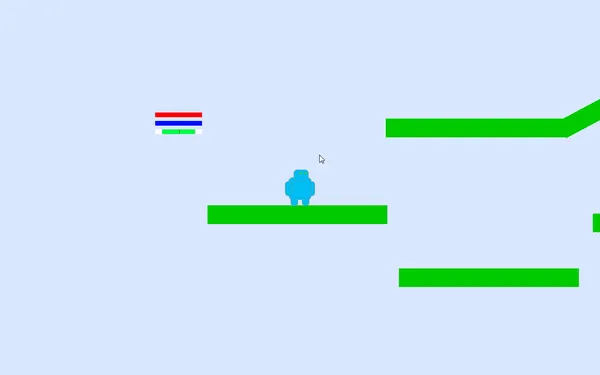
Create animations for other states, such as Run, Jump, and Attack, using a similar approach. This will ensure consistency and smoothness of animations in your project.
Now we'll set up the animation to change based on the object's state. This will create a more dynamic and interactive experience, increasing user engagement. Animation synchronized with the object's state will improve visual perception and make the interface more intuitive. This approach not only improves the user experience but also promotes more effective interaction with the content.
When the player presses the attack button, the character should not only fire a projectile but also change the animation. To manage state changes, use transitions from Animator or Animation Controller. This component is automatically created in the same folder where the animation is saved. Properly setting up animations and transitions ensures a smooth player interaction with the gameplay, which significantly improves the user experience.
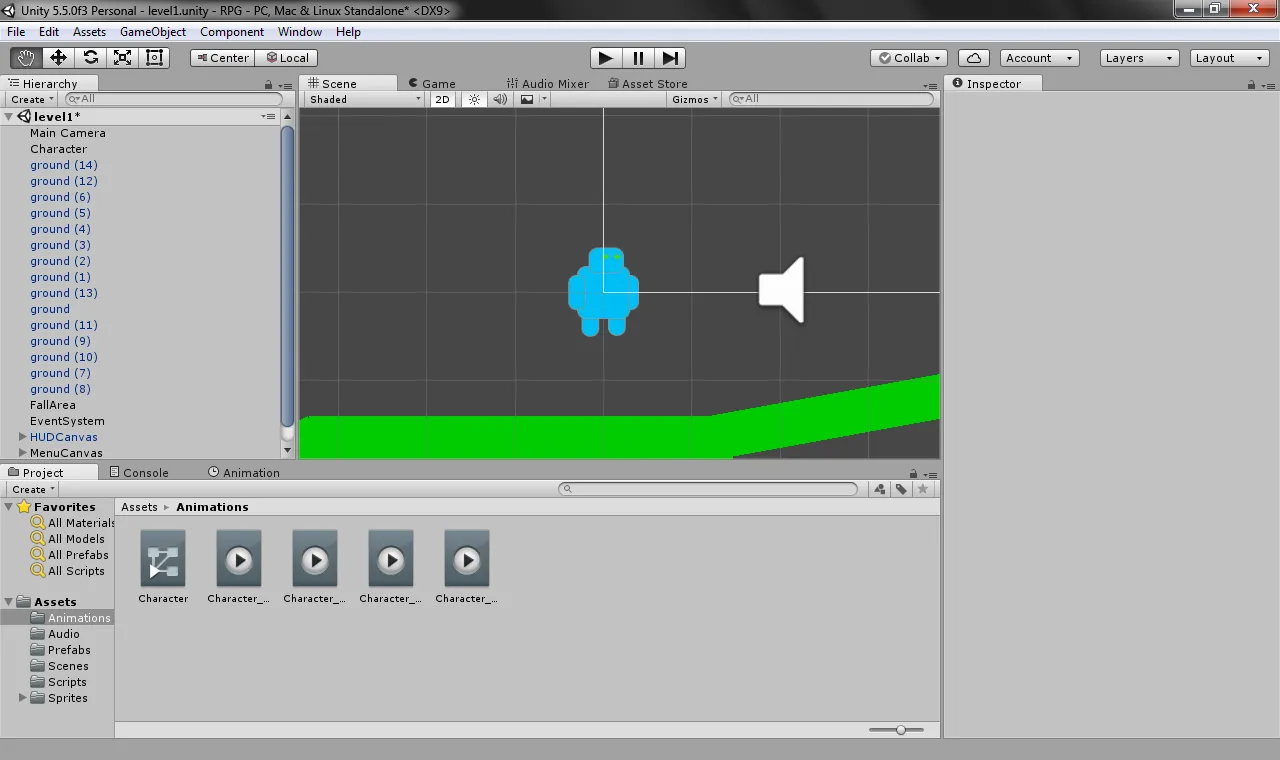
To run the animation, go to the Window menu and select Animator. In this section, you will find the necessary tools for working with animation. Make sure the file is uploaded correctly and is editable.
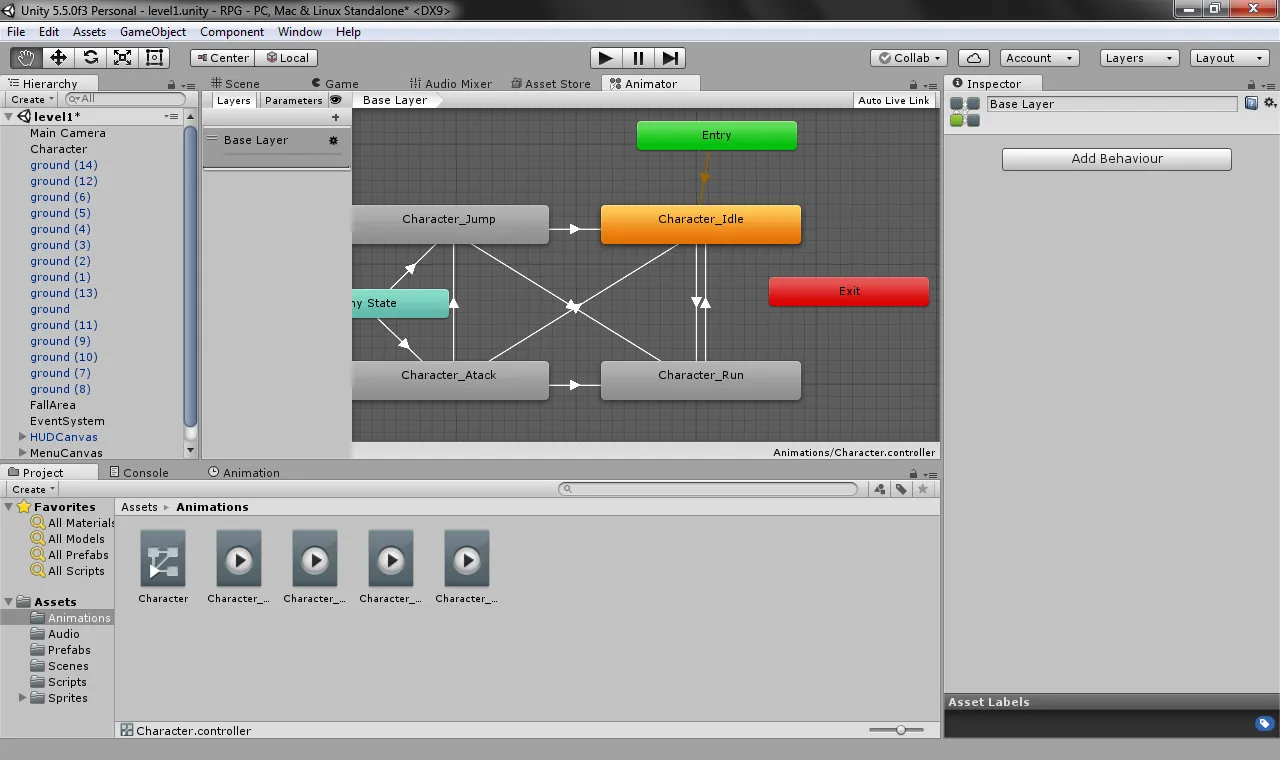
The source file already contains all the created animations, but the links between them are not configured. To establish these connections, use the Transitions feature.
The first transition is between the Entry and Character_Idle states. This is the animation that plays by default in the system.
Exit is responsible for the animation that plays before the character dies. Any State allows you to create a transition from any state, significantly reducing the number of Transition components. This simplifies the animation process and makes it more flexible, which is especially useful in game development.
Before creating transitions, you need to add parameters that will be used in the conditions. To do this, click the "Parameters" section, then click the plus button and select the desired parameter type. This will allow you to effectively customize the transition logic and improve the user experience.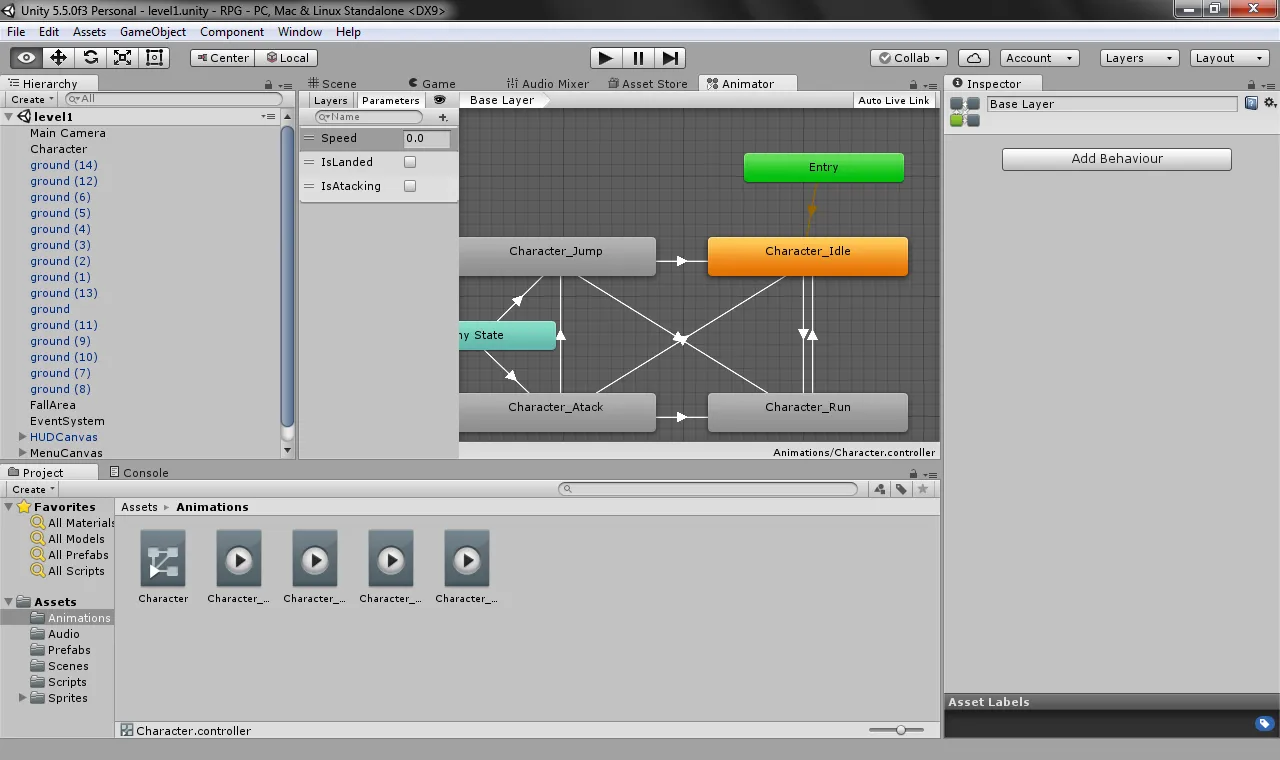
Now let's add transitions. Right-click on any state and select "Create Transition." Then drag the arrow to any other animation. This will establish a connection between the states and improve the smoothness of the animation.
Then click on the arrow to set the conditions in the «Conditions» section.
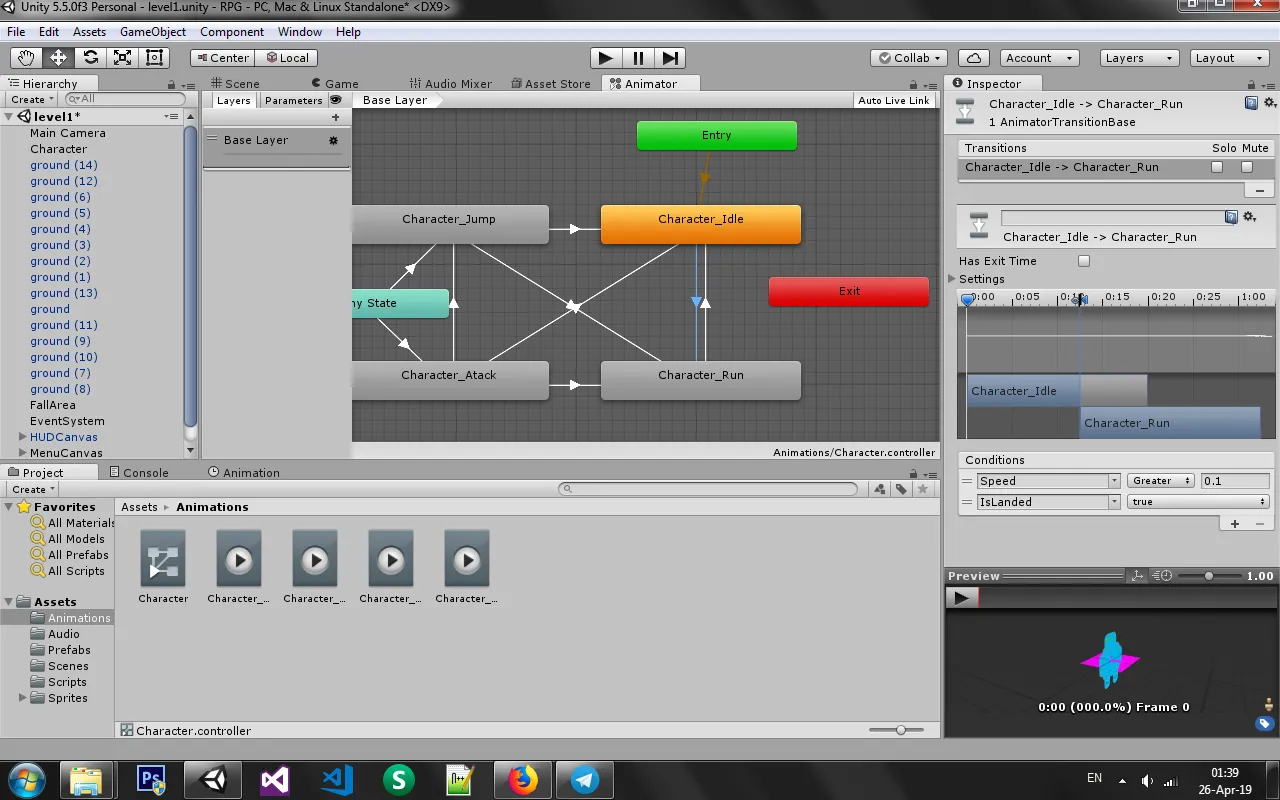
The transition will be performed when when the character is on the ground and its speed is greater than 0.1. This value is chosen so that the animation can react to even the slightest changes, ensuring smooth and realistic movements.
Define conditions and transitions for all other states in the same way.
By default, the parameters are not changed and are updated using scripts. To make changes, open the Character.cs file and add the animator field. This will allow you to control animations and improve the character's interaction with the game environment. Proper use of the animator will significantly improve the quality of animation and make gameplay more dynamic.
In the Unity Editor, you need to drag the Animator component to the animator field of the Character.cs component. This action will establish a link between animations and character control, which will make the animations smoother and more natural.
Now you can interact with the animator using a script. In the Update() method, the direction of movement is passed as speed, which allows you to dynamically control the character's animation depending on its movement. This ensures more realistic animations and improves the overall gameplay experience. Using scripts to control the animator helps optimize performance and facilitates the process of creating interactive elements in the game.
Parameters such as isLanded are updated in the Jump() method. This is essential for the correct operation of the interaction logic in the application. Changing the isLanded state allows us to track whether an object has landed, which is critical for further calculations and actions in the gameplay. Proper management of this parameter ensures a smooth gaming experience and prevents possible errors in the game logic.
After setting all the parameters, we launch the game and test its functionality. Now we can watch our character move around the game world.
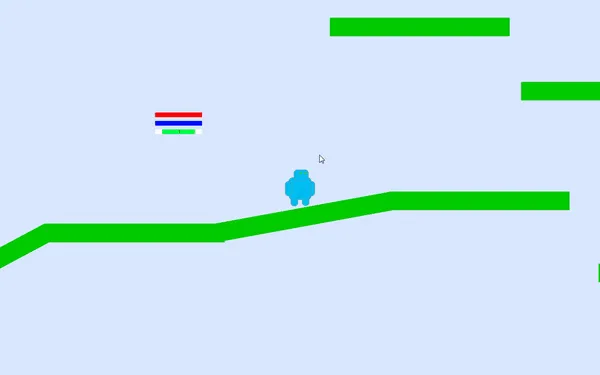
Shoots.
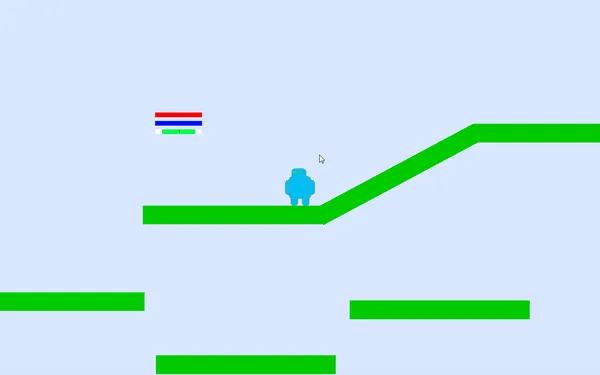
We created a simple animation for the game using a minimal amount of code. This allows us to optimize performance and improve the user experience, while maintaining high-quality graphics and smooth movements. Effective use of animation in games helps create a more immersive atmosphere and increases player engagement.
Profession Unity Game Developer from Scratch
You will master game development from scratch. Enhance your programming skills: learn to write in C# and create 2D and 3D games in Unity. The language is easy to learn, even if you've never coded before. So, you'll be able to develop the mobile or desktop game you've always dreamed of and land real-world projects during the course. And a personal manager will help you find a job at a cool game studio.
Find out more